Whenever we talk about thin series gaming laptops or productive laptops, Lenovo Legion Slim is mentioned there. We have already reviewed many of the previous edition Legions. This year’s Lenovo Legion 7i is also here.
They have removed the word slim from the name. And only its name used to be slim. The weight of this laptop is around 2.2-2.3 kgs. It is thin in appearance. And as you have read in the title, this laptop is not for everyone. And this thing still exists which I have covered in the last reviews.
Power adapter and a power cord
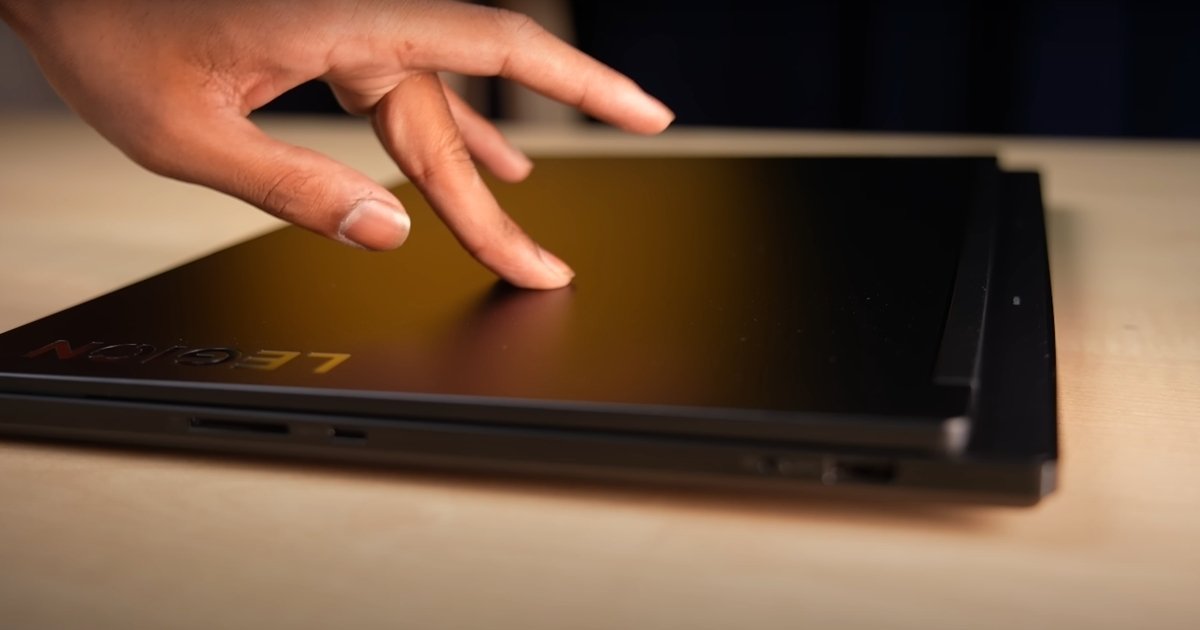
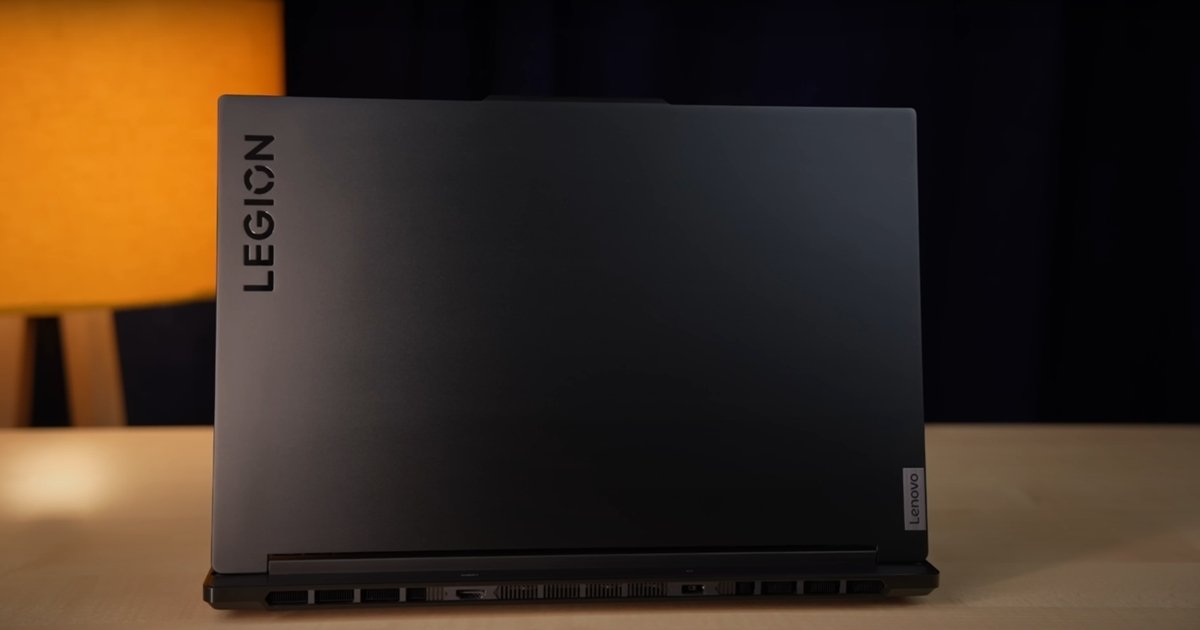
What I have covered is known to the old audience. And if you are new to this channel, then watch this review in 2024. If we talk about the unboxing process, The laptop is made entirely of metal. Top lid, Keyboard part, Bottom part, There is no polycarbonate part anywhere. It is all metal. And this metal is good, It gives a premium feel.
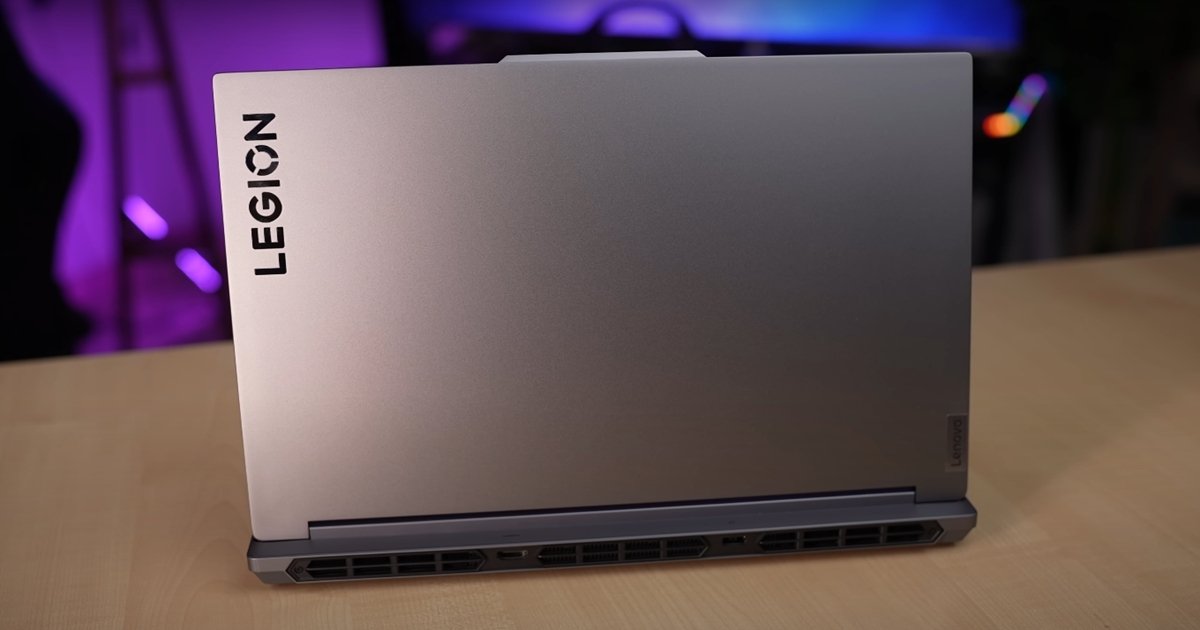
We won’t do that You will get a laptop, a 230W power adapter and a power cord. The laptop follows the same pattern as Lenovo Legion with Lenovo And Legion’s branding.
But, It comes with a drawback, If you know, you know. I will tell you later. The weight distribution is good, The lid opens easily with one hand. And the laptop is very premium. The build quality is good, Top lid flex is not there. Keyboard flex is not there. And this also follows the latest thermal system of Lenovo, which is there in LOQ, Legion, 5i, 5i pro and all series.
Lenovo Legion 7i
There is no exhaust vent in the left and right. There is only air intake vent from below and exhaust vent at the back. So, It has the same scenario, Vacuum, Vapor chamber cooling.
The top lid goes up to 180 degrees. And if we talk about the screen wobble, We get very less screen wobble. As you can see, The screen is very thin, So, Screen wobble is also there. Normally, If we keep the laptop in one place, The screen doesn’t wobble. And yes, As I told you, The weight of this laptop is 2.25 kgs. And if we include the 230W power adapter, Then it weighs around 3 kgs. Which is a heavy weight.
Premium series gaming productive laptop
It’s good that they removed the slim from the front. Because, If we look at thin form factor, Productive and gaming laptops like Zephyrus series, ASUS, Or if we look at Infinix GT book, I will say that it is a thin series, Productive and gaming laptop. I will say that it is a premium series gaming productive laptop. Why am I using the word productive again and again? I will talk about it in detail. And yes, If we talk about the technical specs, The variant we have is i7-14700HX with 20 core 28 threads processor. It has 32 GB RAM DDR5 with 5600 MHz clock speed, in Dual channel and has 2 slots.
And it can go up to 32 GB maximum. So, This is the max-out variant. I will tell you about the other variants later. It has RTX 4070 GPU, 8 GB VRAM, 140 Watt TGP, 1 TB Gen 4 SSD. And it has a proper Gen 4 read and write speed. It has 2 SSD slots, The brand says that it can run up to 1 TB in 1 slot.
All the Gen 4 laptops that we have upgraded in the studio and even my audience has upgraded. 2 TB per slot can be easily run. It has Wi-Fi 6E connectivity, Bluetooth version 5.4. And you will get MS office option as well.
Because you can customize it on your website. MS office is added in Rs 2000. So, Definitely add MS office. Because MS office is very much needed for the target audience like working professionals, Productive users, Creators. Here, I got 14700HX. If you want, You can add Rs 5,000 extra and get 14900HX. You get Windows option, MS office, You can opt for 16 GB RAM if you don’t want 32 GB. And you get Windows 11 Home option as well.
If you want, You can upgrade to Windows 11 Pro by adding Rs 9000 extra. Now, When it comes to customization, This laptop starts from Rs 1,60,000.
3.2K 1600P display
You get SSD options 512 GB and 1 TB. I think, It should have a 2 TB option. Because today’s data is getting bigger and bigger. We also get display options, We have a 3.2K display. It has a 1600P display as well. And it has a difference in color gamut and refresh rate, I will tell you about this later. And we get 2 GPUs, 4060 and 4070. You can choose the size of your pocket. It has a 1080P webcam. And it has 2 colors, Black and white. According to me, The glacier white of Legion just looks amazing.
Last year, We had a Legion white color. But that Legion was not this one, It was a metal build one. It was a polycarbonate one. But that laptop looks sexy. If you want to buy this laptop by the end of the video, Then buy the white one. This laptop goes up to 1,90,000-1,95,000 in different configurations. And it targets different users.
There is an option for keyboard as well. Whether you want per key RGB or If you are a gamer, Then buy the white color backlight. Otherwise, Single color backlight is your choice.
About the performance benchmark
First, Cinebench R23. You can see the multi-core and single-core scores. Then we tested Cinebench 2024. This is the Geekbench 6 benchmark. Geekbench 6 OpenCL. It is good for the GPU as per 4070. Crossmark benchmark. Then we have PCMark 10, The score is around 8000. 3DMark Time spy score is good. In VRMark, This is a super score. Blender benchmark is also around 4070-3700. We were doing the extreme testing of the laptop. We did Furmark that is a GPU intensive benchmark was running for 1.5-1 hour.
The maximum temperature of the GPU is 87 degrees. The peak wattage was up to 130W. But the average is 114W. The RTX 4000 series of NVIDIA doesn’t push that much in terms of gaming. Prime95 benchmark was running for a long time. It puts the CPU in full 100% load.
You will understand how hot this laptop is. The maximum CPU temperature of the CPU is 97 degrees. The core clock is up to 3000MHz and the average is 2300MHz. This shows that the laptop has thermal throttling. The metal build is good. It gives you premium look.
I wanted to show you the peak performance of this laptop. So, I showed you. Don’t worry in real-life scenarios, It won’t give you the same heat as I am showing you.
But, In terms of performance it is bad because the laptop gets warm. The temperature of the GPU is 87 degrees and the CPU is 97 degrees. By the way, This is not a real-life workload. This is a 100% workload which you are not going to do. Because, In Cinebench R23, The maximum clock speed was 5.4GHz and the average was 3.1GHz. So, There is no problem in normal performance.
4K video editing and 3D modeling
In real-life scenarios, You can easily handle 4K video editing. Whether you take i7 or i9 CPU. The GPU is good, You can do 3D modeling, Rendering, After effects, Game development, You can do any task and it won’t create any problem. If you want to do gaming, It will definitely help you.. Even if you take 16 GB, You will get a good streaming experience in 32 GB. You can do basic streaming in any laptop, I am talking about gaming streaming.
If you want to do streaming, You can do that too. Because, The CPU is powerful and the RAM is good.
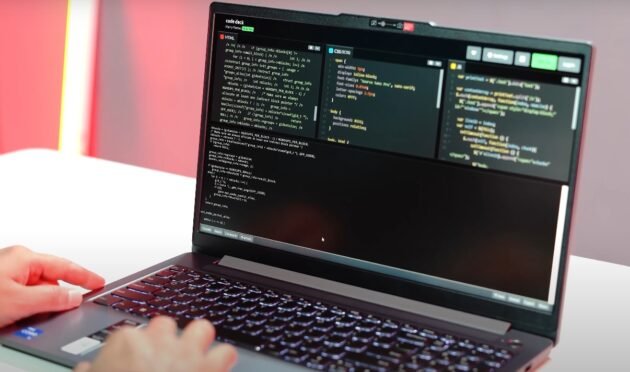
If you are a student, You want to do coding, Music production tasks, This is a full-fledged laptop, You won’t face any problem. It gets hot , The temperature of the body gets hot.
After heavy usage, The area around the touchpad was around 38-42 degrees. The area around the keyboard i.e. W,A,S,D Is around 35-36 degrees. The area around the space bar is around 45-46 degrees. And the area around the chipset is around 47-48 degrees. Lenovo legion laptop has a good GPU, So, We have to do a game test.
According to the processor
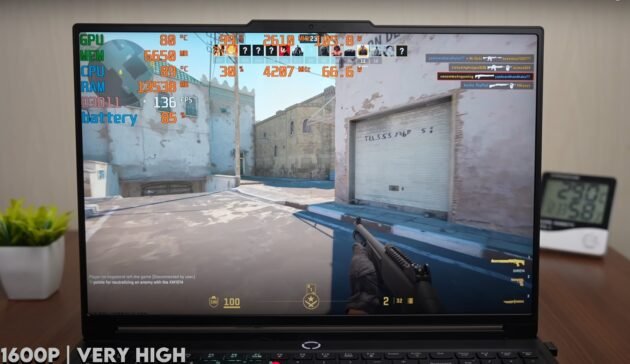
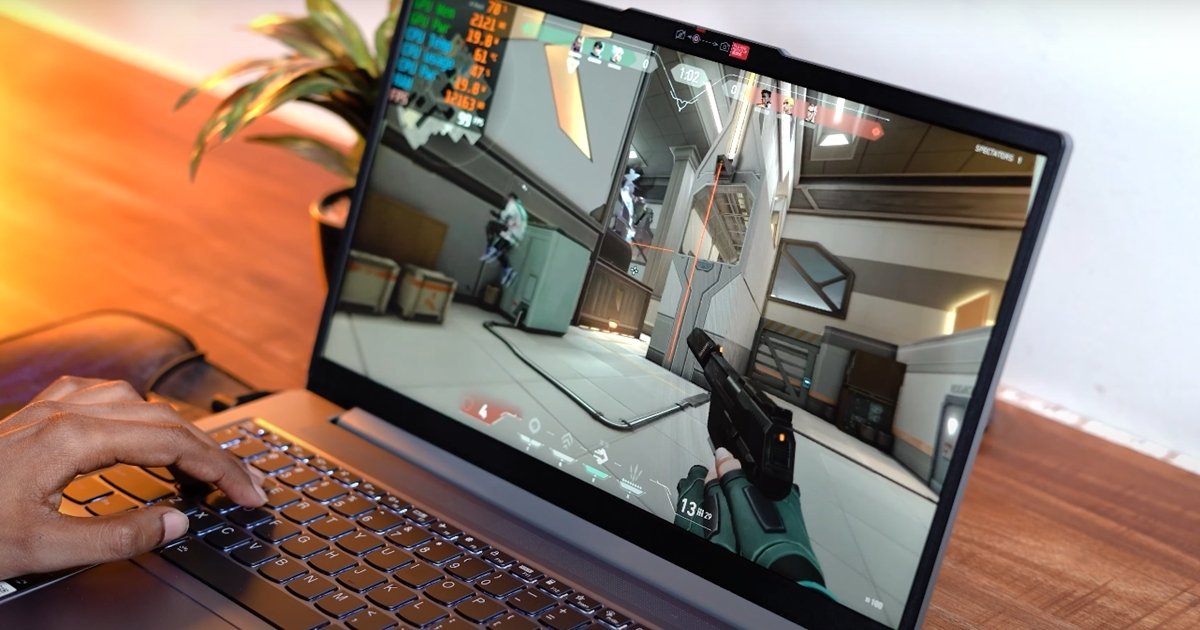
It has 4070 and I am testing it on 1600P. It has a 3.2K display. I am testing 1-2 games in 3.2K, If you want to play natively. But, The reason for doing a game test on 1600P is, If you want to compare 4060 and 4070 with other laptops, You can do it there. I have just started the game test. The CPU temperature is around 85-90 degrees. So, Let’s move ahead. First of all, Valorant. I will test all the games on 1600P. I have kept high settings in Valorant. According to the processor, I am getting 350 FPS. Sometimes, 400 FPS also.
The wattage is also good. But still, The temperature is high. I am testing CS2. I have kept very high settings on 1600P. I am getting 130-140 FPS in CS2. The temperatures are increasing. It is around 91-95 degrees. I am getting 60 FPS. I have added Elden Ring on your demand. I am testing it on maximum settings. This game is demanding. I think this is a 60 FPS locked game. But yes, In 4070 and 1600P, The frame rates had to be stable 60. RDR2 is on favor quality and DLSS is off on one side and quality on other side.
I am getting good frame rates 70-80 in both scenarios. The CPU wattage is less in RDR2 compared to other games. It is more GPU intensive. GPU is drawing a lot of power. And the temperatures are around 85-90 degrees. Then I tested Warzone 2.0. I am getting 1600P, Extreme settings, DLSS, and we get Frame generation in this.
I don’t know which mode was installed during the game test. Everything was white. As such, There is no issue in the laptop. It was a game mode. I am getting 70-80 FPS normally.
And I am getting 100-110-120 FPS after frame generation. I tested Cyberpunk. On Ultra settings, raw performance without ray tracing. Around 50-60 FPS is good. And after using DLSS frame generation, it reaches 90 FPS. Then I also did ray tracing on ultra. And after doing ray tracing on ultra, even if the raw performance is of 4070, It is not able to perform. But after using frame generation, the frame rate was 60-70 FPS. And then Hogwarts legacy on ultra settings. And here I am getting DLSS frame generation.
I am getting a good boost from frame generation. And in ultra settings, Ray tracing also sets on ultra. So, You can see the performance according to that. It is giving a very good performance. Then the last of us, 1600P ultra settings. On DLSS on and off. In both scenarios, I am getting 40-45 FPS. After that, I tested Horizon Forbidden West on very high settings. We get frame generation in this, But it didn’t have any impact. In both scenarios, I was getting almost the same frame rate.
The game is playable, But this game needs to be improved. After that, Ghost of Tsushima. You asked me to see these games, I said, let’s add a new game. I removed GTA 5, You must have noticed. I tested this on very high settings. And this game was good. This game is optimized as I was reading the reviews This game is very optimized since Day 1 and there is no issue in performance And you will get playable FPS in 4070 at very high settings. We have added Hellblade 2, we are testing it at high settings.
Game at high settings
We get frame generation in this too. This is a very demanding game at high settings. Normally, our raw performance was around 20 FPS. We have put frame generation, so the laptop said that I will play it. These are the latest games, GPU is getting more intensive. So, you can see that we need 4060 or 4070 minimum to play good games. Rest, these are high settings, You can play with some settings if you want.
Lenovo Legion 7i
Next is the native resolution 3.2K. I tested Valorant at 3.2K, Obviously, this is a CPU intensive game. That’s why I was testing 3.2K. The native resolution of this laptop is very high as per its GPU. We also tested Hellblade 2 at its native resolution.
It gave a good performance. Then we tested Cyberpunk. Without ray tracing, we were getting 5-10 FPS less in 3.2K as compared to 1600P. I also tested ray tracing ultra. In ray tracing ultra, the frame generation gameplay was playable. It was not raw. In the last of us, you can see that the performance is playable after putting 3.2K DLSS. It is not normal.
In terms of ports
The performance was good even after putting frame generation. In raw performance, it is very less. On the right side, USB 3.2 Gen 1 Type-A port. Here, we get a physical switch which is used to close the webcam. A USB 3.2 Gen 1 Type-C port which supports fast speed data transfer and not display output. Here, we get a full-sized card reader which is very useful for the users whom it targets.
I am talking about creative and productive users. On the left side, USB 3.2 Gen 1 Type-A port which is always on. You can also use 100W PD charger but you can take peak power up to 140W. And we get another Type-C port, Thunderbolt 4. Finally, Legion has Thunderbolt 4 port. As it is Thunderbolt 4 port, Fast speed data transfer and display output is available.
You can also take output from this laptop for charging your TWS, watch etc. Here, we get a USB Type-C port which supports display output. It supports DP 1.4 which means you can easily take maximum output of 4K up to 144Hz. And it gives output from 4070. This Type-C port supports PD as well. It supports PD up to 140W.
If you are running on dedicated GPU
The good thing is that HDMI port is on the back. If you want to connect it to a TV, Then you won’t face any problem in wire management.
You get display output from iGPU on iGPU mode. You won’t get display output from it. And it also supports 140W PD which is a good thing. They have given Thunderbolt 4 port in Legion 7i series that is not in others. Here, we get a headphone-mic jack combo. On the back, we get HDMI 2.1 port which gives maximum output of 4K up to 144Hz. And its output is also available from NVIDIA GPU. Fore more review according this Read here.
It doesn’t make any sense. And 2024 is going on. You get MUX switch on Lenovo laptop. You get DGPU, IGPU, IGPU only, Hybrid and all modes in Vantage. I will explain MUX switch in short. If you want more battery backup, Then keep the display output on IGPU.
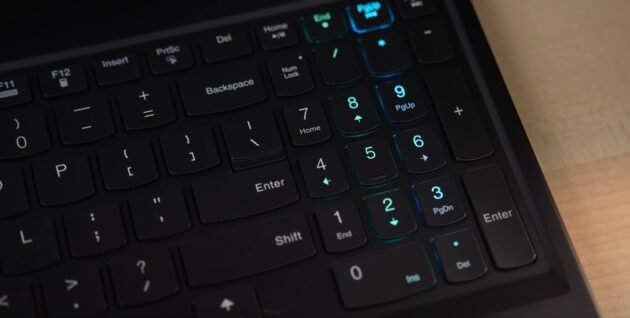
If you want better performance, Then keep the display output on DGPU. If you want mix, Then keep it on hybrid. It works like this. As far as the keyboard is concerned, Legion True Strike gaming keyboard is available. It has U-shaped keys.
Top features of Lenovo Legion 7i
It gives premium typing experience. And its keycaps are swappable. But, You won’t get swappable keycaps on Indian websites. I have it in my studio, I got it from Lenovo. You can change it. There are different color options. You don’t have to change the keyboard if the keycaps break. But, Why are you not getting it in India? Lenovo, Please introduce it to the audience.
You get an audio effect. It reacts very well to the audio. And as AI machinery is being made by everyone. It has a dedicated co-pilot key. You can open the co-pilot from the key Although you can open through Windows plus C. It is just a cherry on the cake.
Lenovo Legion 7i
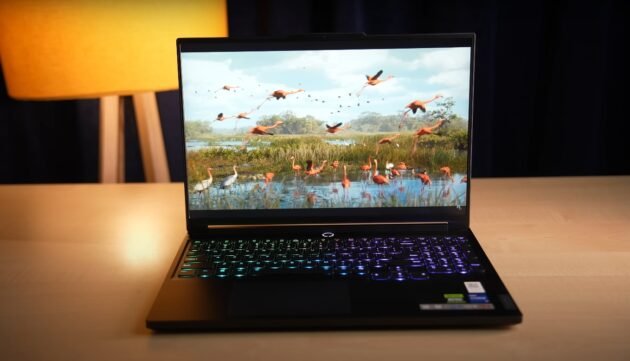
This is a per-key RGB keyboard. You get a white option, I have already told you. You can customize it. You get 9 levels of brightness. You get different effects. You can select and set per-key RGB so you can set any RGB on it.
The power button is a fingerprint scanner. It works very well. It is turned on in full fast speed. It is a laptop for targeting productive users so we get extra things in this. The trackpad size is also good. It is a fully clickable trackpad.
There is no issue while using and It supports multi-gesture.
The peak brightness of the display came out to be 445 Nits
It has a 3.2K Display. The resolution is 3200 x 2000. It has an anti-glare IPS display. It has a refresh rate of 165W. It is a 16 ratio 10 display. The peak brightness of the display came out to be 445 Nits in our testing. It is a very bright display. And they give a very good display in Legion. The color gamut is also good. It has 100% sRGB, 88% Adobe RGB, 97% DCI-P3. The brand has mentioned 100% but it is 97% in testing.
It has 85% NTSC. It supports TUV low blue light. You can use it for a long session. Low blue light won’t harm your eyes. The display supports Dolby Vision. The brightness is good. The color gamut is good. If you watch content on Dolby Vision. You get a choice in the display. If You don’t want to buy the 3.2K display. You can buy the 1600P display. It has a refresh rate of 240Hz. If you are an Esports player, You are watching an Esports display for gaming. That has 100% sRGB and this one has 100% DCI-P3.
It has privacy screen, peak detection and auto lock option
So, There is a difference in pricing. This is the webcam test of this laptop. And the mic is also being used of the laptop I am using a 1080P webcam. The quality of this webcam is good. Me and the webcam. The speakers of this laptop are like Legion speakers. They are neither too loud nor too quiet. It has 2 speakers of 2W each and are down firing. And the audio experience is pretty decent.
It has a feature called Toby. It has a lot of features. But, It has a big option for privacy and security. You can add custom images if you are not in front of the screen. You will get smart framing. It has privacy screen, peak detection and auto lock option. When you are not in front of your system, This feature comes in handy. Your screen gets blurred, You will get a notification. Or your windows will get auto locked. It has a feature for smart camera and streaming. It has a present based privacy.
The productivity options are good. The screen gets dimmed when you move away from the screen. You can set after how many seconds it should be dimmed. You get a stay-awake option. The system will be on when you are in front of the system. It has a game feature that has an extended view.
In You can change the POV while playing the game according to the head movement as you can see. It has digital well-being as it is on our phone. It shows the screen time, last break, distance from the screen, distance from the screen. 50 cm is recommended.
It is a rule in flights that you cannot carry anything with 100 Watt battery
It has a 99.9Wh battery. You must be thinking that it should be 100Wh. It is a rule in flights that you cannot carry anything with 100 Watt battery. So, They have to do 99.9Wh. So that if you travel, no one will stop you. Lenovo has added 99.9Wh battery. If your task changes, The battery backup can be increased or decreased. In terms of battery backup, Superb performance with a gaming productivity laptop.
You get a good battery backup. If you run this on IGPU mode. Because if you want good battery backup, You will definitely not be able to do gaming. Because you don’t get full-fledged performance.
CPU and GPU don’t push the power. I have told you in many videos that the FPS drops on the battery. So, Gaming laptops are not made for you. If you want gaming, You will have to do gaming on the plug-in. And if you turn off the keyboard backlight. 60-70% screen brightness and IGPU mode. So, You can easily get 7-8 hours of battery backup in basic tasks.
This is the only one in the market. Maybe with 99.9Wh. Is there anyone else? Tell me in the comments. So, This was the review of Lenovo Legion 7i. You can also consider it as Legion slim 7i. In which we get normally all the laptops. Like Predator, Omen, Legion 5i, 5i pro. This laptop is of a separate category. So, It is not even worth comparing. Because those laptops are thick. Weight is the same. They are made of polycarbonate. Even if the top lid is made of metal.
If you do gaming for 2-4 hours, And you want a thin laptop
Rest is made of polycarbonate. It has a fingerprint scanner, Toby sensor it has a full metal build. It has a Thunderbolt 4 port. There are some things here that target the productive and creative users. Those who do gaming. I am mentioning the productive and creative people first. Because such people don’t do gaming for a long time. Even if they do gaming, They don’t have much time in their life. If you ask me, They do gaming for 2-3 hours. So, This laptop is for those people. You can do gaming of any level.
You have seen the performance. But thermals become too hot. So, If you do gaming for 2-4 hours, And you want a thin laptop. I am not saying light, I am saying thin. Then you can consider this. If you want a thick laptop, Then you have other options in the market. Like Legion Pro series or Predator, I mean the full-fledged laptops that we review. And the drawback of this laptop is, It is a metal build. Because of which, It gets hot quickly. And it also gets cold quickly.
Today we have the most selling laptop Lenovo’s 3. This laptop is in so much discussion and we will also know whether this laptop is actually value for money or is it just being oversold due to marketing, so this post is very interesting.
Build quality of Lenovo Ideapad Slim 3
On the left side it seems that the laptop is completely metal body. But its body material is polycarbonate, its lower body is in plastic build. Even in real experience, on paying attention it is known that it is polycarbonate, otherwise the feel is also that the laptop is made of metal, although its bill quality is solid and its display goes back so much.
It is not completely flat but even here it is more than sufficient. And yaar, its weight is only 1600 grams, generally the 15 inch laptops are 1800 grams, so a laptop with a big display that too in 1600 grams does a good job.
Lenovo Ideapad Slim 3 Processor
Now the main thing is the specifications of the laptop, whoever has to do their work checks it but there is one very important thing. If you want to use Intel’s, it means that you are concerned about performance, that whatever I do on my laptop, my laptop should not stop. In that case you should buy a processor of the h series. Ok, but do you know the biggest question, what is it? Is 12450 h the most powerful processor? There is no other processor more powerful than this.
In this budget, the real answer is no, but now let’s understand a little technical. Look, there are eight cores. In this, there are four performance cores, four efficiency cores and 12 threads. The base clock speed of the performance core in the processor is 2.0 GHz max clock speed. 4.4 GHz is the base clock speed of the efficiency core. 1.5 GHz and 3.3 GHz is the max clock speed.
Understand it by example, when you are reading any PDF or attending meetings, not much resources are used in it, then the efficiency course remains on. When you are doing something in your laptop, that means you need performance from the laptop, then its performance course comes in handy, at that time the battery backup is not much, because look we are concerned with work. Brother, our work should be done at that time, so both the courses matter, both are balanced in it, overall performance is excellent.
We will also check the rest of the performance in the laptop in detail and its RAM is also the latest and along with that its SSD is also the latest, first of all we get 16GB dd5 RAM, It has 4800 MB RAM and it is on board RAM and it is not expandable which is fine because in a professional laptop 16 GB RAM is not more than sufficient. mostly in all the other options of this budget, we get dd4 RAM but it has the latest version, so it is a good thing. This and due to this its speed becomes very fast.
It would have been a problem if this laptop had come with 8 GB RAM and even its 8 GB was not expandable then we would have skipped this laptop. Anyways it has 512 GB AV SSD and it is a Gen 4 SSD. The booting time of the laptop is 16 seconds and its graphics are integrated. See the read and write speed of Gen 4 is much faster as compared to Gen 3 SSD and in most of the other options under Rs 50000 we get Gen 3 SSD so its storage is also much faster.
lenovo ideapad slim 3
And because of this 3D graphics, our version ran smoothly on it, now we will see how it runs on version settings, but overall graphics are good, after that ws1 comes with ma office 2021 with lifetime validity, and along with that, mefe antivirus is also available, this is about the specification. How will your laptop perform while running media in different scenarios, productivity tasks have to be checked.
In comparison to the other processors available with us in this budget, these are on the higher side scores, then after that we ran the latest cinema r23 and after that you can see I also ran 3D mark, but that is not so important in this. Because 3D marks are for 3D rendering of the system, anyway PC mark is most important, it checks the overall performance of the system.
Gaming and baenchmarks
Let’s sum it up a bit, if you want to create basic content, you will not face any problem in that, then this laptop will do your editing and after that I ran it and saw that without gaming, the testing is not complete, I played Loret on it, it ran very smoothly.
It tests everything, including internet, office software, etc. and then system storage. The difference in them is the score of GAG Bench, I am understanding something else, see, coding is done very easily. These are end to end specific, total 25 test runs are done in this testing.
Now one thing is that the results of different benchmarks should be seen in gaming laptops and laptops of thin light category. which is also very good and here is the cross mark in front of you, And I have 16 GB RAM and that too the latest one, so I did not face any problem even on 1 GB while coding. So overall its numbers are quite decent, see, you have seen the numbers, now let’s check its real time testing, brother, I have tried everything on it, tried coding, tried gaming, tried editing.
From Scepticism to Devotion: My Three Weeks with the LG StanByMe 2
Upon first hearing about the LG StanByMe 2, I confess I harboured a fair amount of doubt. A portable, rollable display felt like a novelty, a solution in search of a problem, rather than a genuine advancement in home entertainment. The idea seemed intriguing, yet I struggled to envision where such a device would truly fit into my daily life, or indeed, anyone’s.
However, after three weeks of living with this distinctive television, my initial reservations have completely evaporated. What I once perceived as a niche gadget has undeniably transformed into an indispensable companion, offering a level of flexibility and convenience I never realised I was missing. It truly has carved out its own unique space within my home.
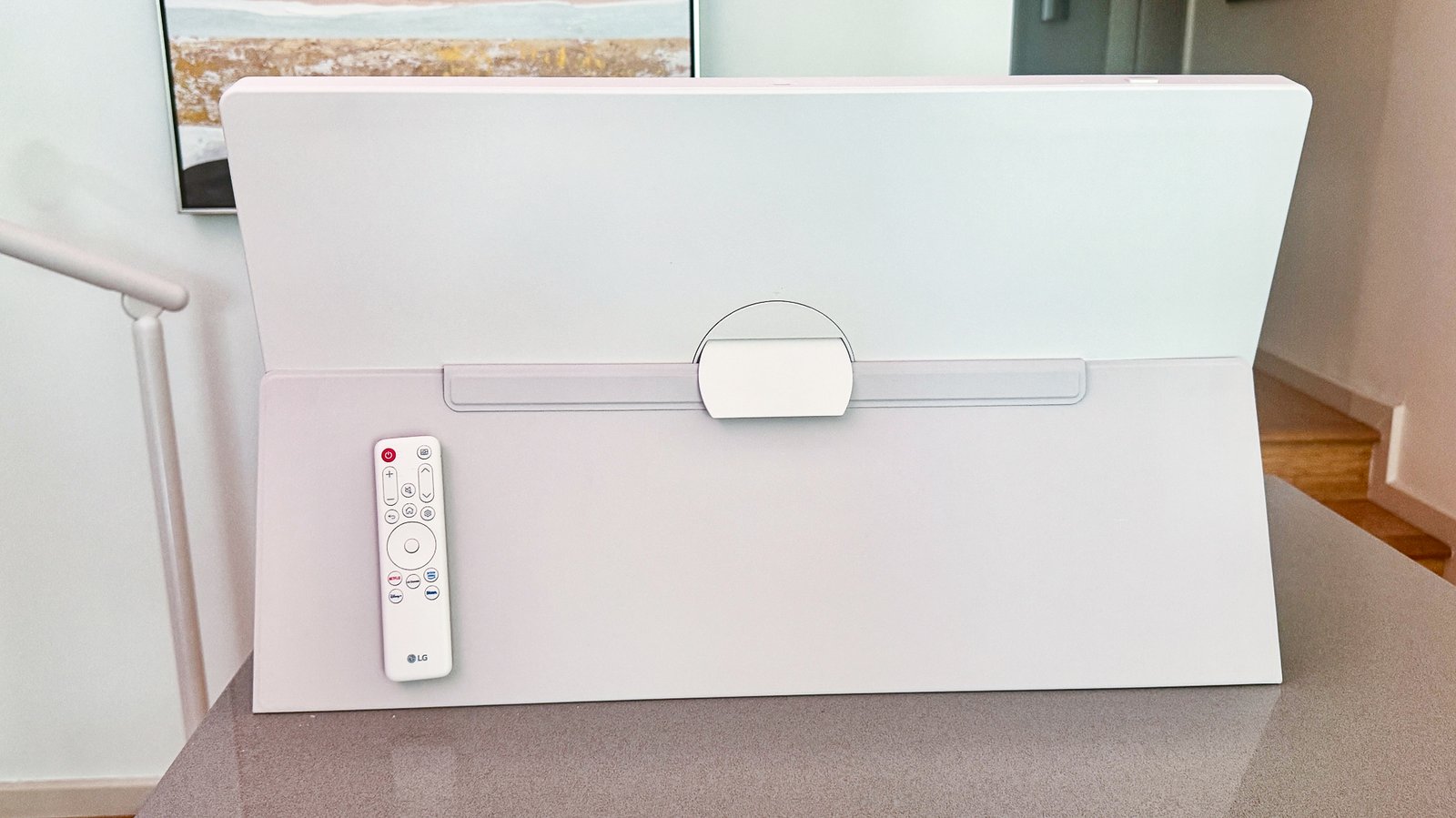
The StanByMe 2’s aesthetic is striking, effortlessly blending into various environments without the permanence of a wall-mounted or bulky traditional set. Its minimalist design, coupled with a sturdy base and smooth-rolling castors, allows for effortless relocation from room to room, adapting to my immediate needs with remarkable grace and ease.
The 27-inch Full HD LED touchscreen itself is a pleasure to interact with, delivering crisp visuals and vibrant colours suitable for everything from streaming my favourite shows to browsing the web. The touch interface is incredibly responsive, making navigation intuitive and a genuine joy to use, a stark contrast to typical remote-centric TV experiences.
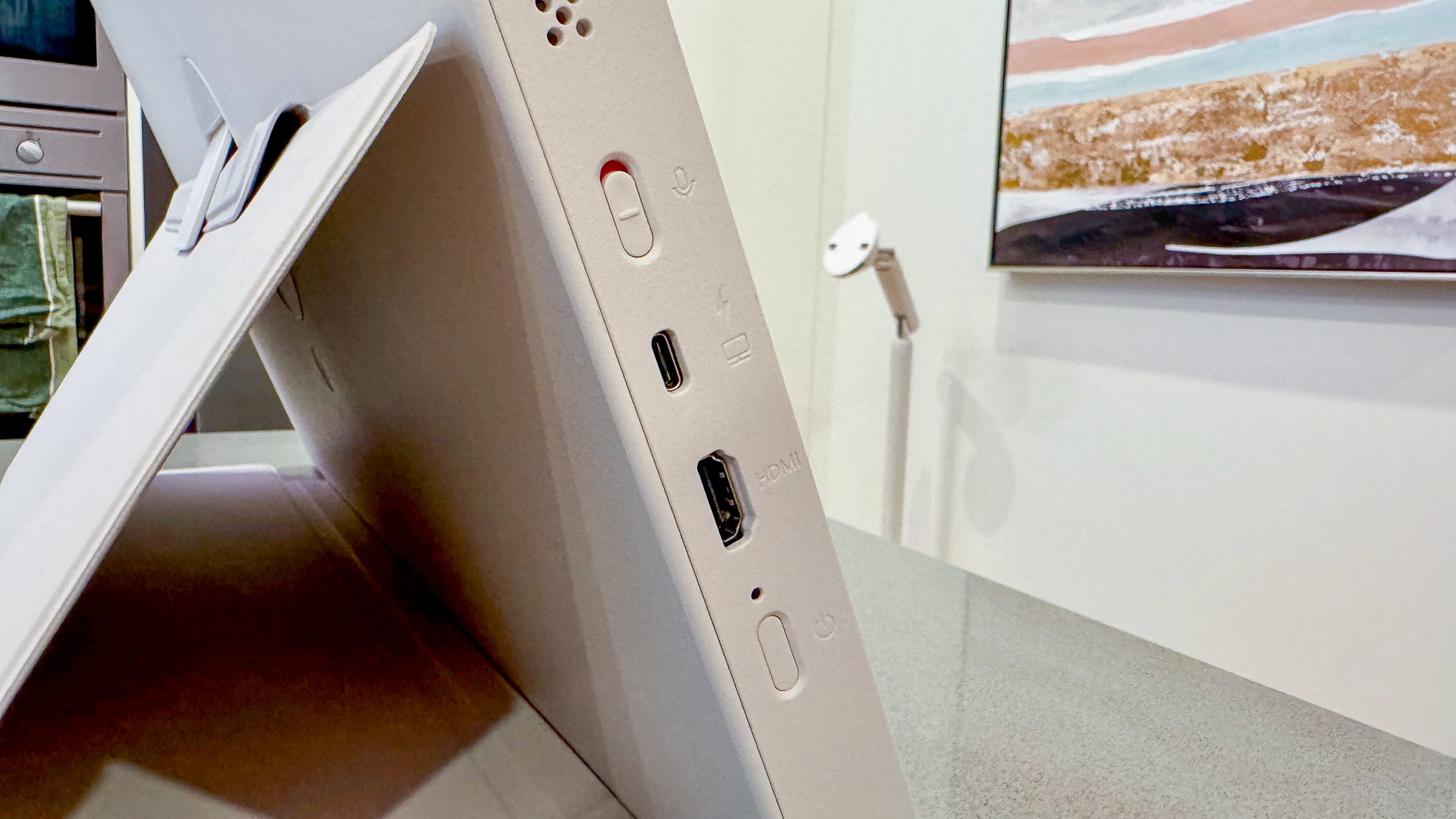
One of its most compelling features is the sheer versatility offered by its adjustable stand. The screen can be tilted, rotated, and even swivelled into portrait mode, opening up a plethora of viewing possibilities. This adaptability quickly revealed the true genius behind its design, proving far more practical than I could have imagined.
In the kitchen, for instance, it has become an invaluable aid. Following recipes on a large, clear display, or catching up on a morning news programme while preparing dinner, has utterly transformed my culinary routine. It keeps me engaged and informed without the need for a tablet precariously balanced on a worktop.
For those quiet evenings, it effortlessly rolls into the bedroom, providing a perfect screen for late-night film viewing without the need for a permanent fixture. It offers an intimate cinema experience, allowing me to fully unwind and enjoy content from the comfort of my bed, then simply wheel it away when done.
During my working day, the StanByMe 2 frequently migrates to my home office. Here, it excels as a secondary monitor, greatly enhancing my productivity during video calls or while managing multiple documents. Its portrait mode is particularly fantastic for scrolling through long articles or social media feeds.
The built-in battery is a game-changer, liberating the display from the nearest power socket for hours on end. This wireless freedom is key to its portable appeal, allowing seamless transitions between rooms without the hassle of constantly plugging and unplugging, truly enhancing its ‘anywhere’ appeal.
Sound quality, often an afterthought on portable devices, genuinely impressed me. The integrated speakers deliver clear, rich audio that’s perfectly adequate for casual listening and dialogue-heavy content, removing the need for external sound systems in most scenarios.
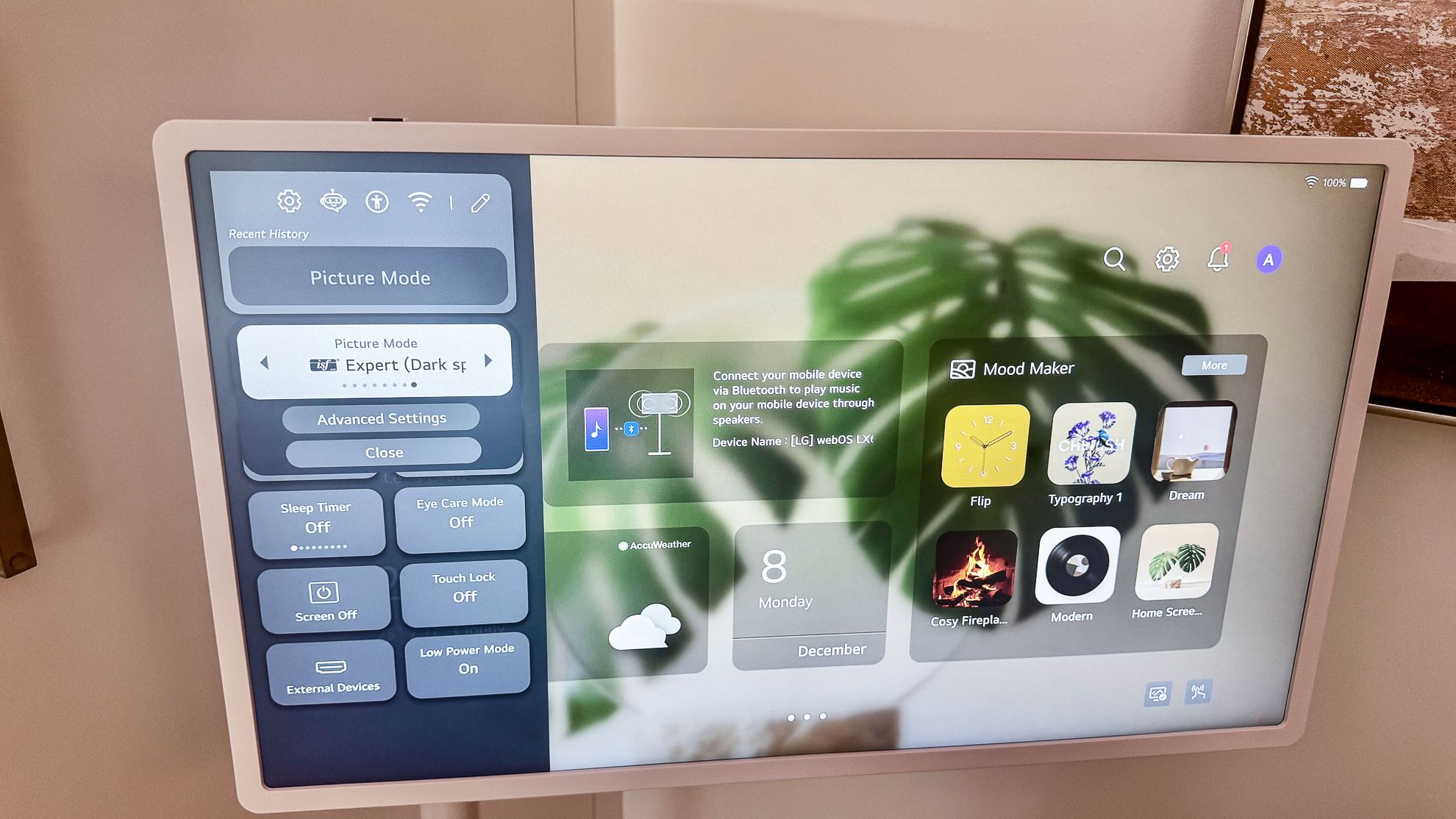
Running LG’s webOS, the StanByMe 2 offers a comprehensive smart TV experience. Access to all major streaming services is seamless, and the intuitive interface ensures that finding and enjoying content is always straightforward. It truly functions as a fully-fledged smart television, just with added mobility.
This device has taught me that innovation isn’t always about groundbreaking new technology, but often about rethinking how existing tech integrates into our lives. The StanByMe 2 takes the familiar concept of a TV and imbues it with an unprecedented level of fluidity and user-centric design.
My viewing habits have evolved considerably since its arrival. Instead of being confined to a single room, entertainment now follows me, adapting to my dynamic lifestyle. It’s a subtle yet profound shift, transforming how I engage with digital content throughout the day.
I went from questioning the very existence of the LG StanByMe 2 to considering it an essential part of my connected home ecosystem. It’s not just a TV; it’s a flexible entertainment hub that redefines convenience and personalises the viewing experience in unexpected ways.
Three weeks later, I am completely convinced. The LG StanByMe 2 is more than just a rollable display; it’s a testament to thoughtful design and functional innovation, proving that sometimes, you don’t know what you need until it effortlessly becomes a part of your everyday.
The Grand Unveiling: Littler Takes On Labanauskas at Darts’ Zenith
The anticipation is palpable as the sporting world turns its gaze towards the iconic Alexandra Palace for the highly anticipated World Darts Championship 2026. This prestigious tournament, a true highlight in the global darts calendar, is set to commence with an electrifying encounter that promises to captivate fans from the very first dart. All eyes will be firmly fixed on the oche as two formidable competitors, Luke Littler and Darius Labanauskas, step up to inaugurate what is sure to be a memorable championship.
This opening fixture is more than just the start of a tournament; it represents a clash of styles and ambitions, setting the tone for weeks of thrilling darting action. For fans across the United Kingdom and indeed the world, the opportunity to witness this spectacle live is paramount. We delve into all the essential details for catching the Luke Littler vs Darius Labanauskas live streams, ensuring you don’t miss a single throw of this pivotal match.
Luke Littler, often hailed as a prodigy within the sport, enters the 2026 World Championship with a reputation that precedes him. His meteoric rise through the ranks has been nothing short of phenomenal, captivating audiences with his audacious talent and composed demeanour under pressure. Littler’s ability to consistently hit maximums and finish with clinical precision makes him one of the most exciting players to watch in contemporary darts, and a genuine contender for future glory.
His journey to Alexandra Palace has been paved with impressive victories and standout performances, solidifying his status as a fan favourite. The expectations resting on his young shoulders are immense, yet he has consistently demonstrated a maturity beyond his years. This opening match provides the perfect platform for Littler to make a significant statement about his intentions for the tournament, proving his mettle against seasoned professionals.
Facing him across the hallowed oche is Darius Labanauskas, the experienced Lithuanian campaigner known affectionately as ‘Lucky D’. Labanauskas brings a wealth of experience to the table, having competed at the highest levels of darts for many years. His steady hand, consistent scoring, and ability to grind out results make him a tricky opponent for anyone, including the sport’s rising stars.
Labanauskas is renowned for his methodical approach and his unwavering focus, traits that have seen him upset higher-ranked players in the past. He understands the pressure of the big stage and will undoubtedly be looking to leverage his experience against Littler’s youthful exuberance. This match promises a fascinating contrast in styles, a true test of nerve and skill as the championship gets underway.
The atmosphere at Alexandra Palace during the World Darts Championship is legendary, providing an unparalleled backdrop for these epic contests. The roar of the crowd, the vibrant costumes, and the collective anticipation create an electric energy that is almost as much a part of the experience as the darts themselves. While not everyone can be there in person, live streaming options bring this incredible spectacle directly into homes across the globe.
For those eager to follow every dart, accessing the live streams will be straightforward. Broadcasters in the UK typically offer comprehensive coverage, ensuring fans can tune in via various platforms. Whether through dedicated sports channels or online streaming services, a host of options are usually available to cater to every preference. Checking local listings and official PDC partners will provide the most accurate and up-to-date information on how to watch this thrilling opening encounter.
This inaugural match between Luke Littler and Darius Labanauskas is poised to be a captivating curtain-raiser for the World Darts Championship 2026. It’s a fixture that embodies the spirit of the tournament: raw talent meeting seasoned experience, all unfolding on the biggest stage in darts. Prepare for an evening of thrilling throws, dramatic finishes, and unforgettable sporting moments as the journey for the coveted Sid Waddell Trophy officially begins.
Fans should ensure they are ready to tune in from the very first throw, as both players will be desperate to secure an early advantage in the competition. The path to becoming world champion is arduous, and a strong start is crucial for building momentum. This match is not just an individual battle; it’s the first ripple in a wave of excitement that will sweep across the darting world for weeks to come, culminating in the crowning of a new champion.
The Lenovo Idea Tab Pro is Lenovo’s latest release and the update to last year’s tab p12, but does it live up to be a worthy successor in this review we’ll be diving deep into everything including. Its upgraded display speaker’s performance and a lot more.
So, let’s see for what it is and if the Idea Tab Pro is the right tablet for you. I would grab a snack because this is going to be an in-depth and long review we’ll start off by having a quick look at what’s included in the box pricing wise the base 8 GB plus 128 GB storage model of the tablet starts at £79.99 or $350. And that includes the tab pen plus we have a SD card tray ejecting pin. We have a safety and warranty booklet quick start guides for the tablet and the pen we also get the Lenovo tab pen plus along with a spare tip for the pen and finally a USB C to USB C charging cable.
Design and build wise
Front of the Idea Tab Pro we have the large 12.7 in LCD display with uniform bezels all around up top we have the volume buttons along with two microphones and the thickness of this tablet is 6.9 mm. And it’s IP 52 rated so keep it away from water to the right we have two speaker grills and the oddly placed USBC Port which is USB 3.2 gen 1 as it supports 5 GB transfer speed. Then around the bottom are the Pogo pin connectors for the keyboard pack which we’ll be having a look at soon as well.
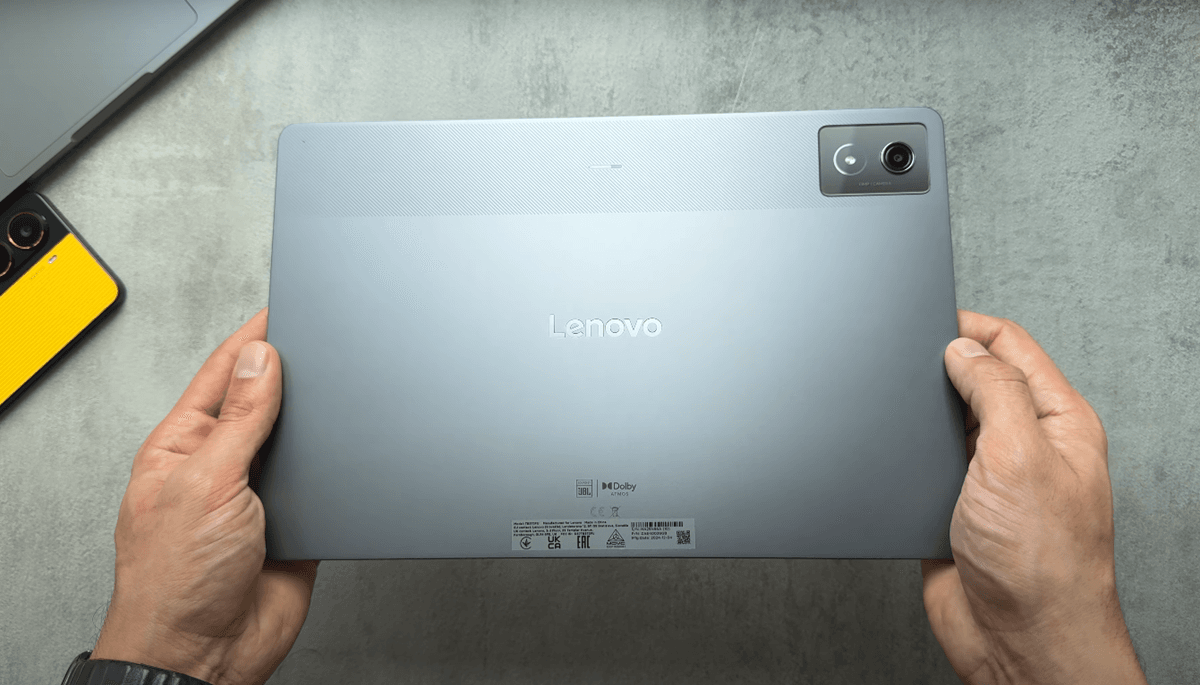
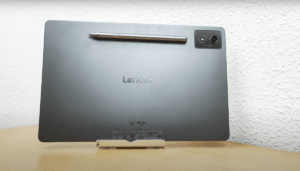
Then to the left we have the power button which is also a fingerprint reader two more speaker drills along with the SD card tray and that supports up to 1 tbte cards. Unfortunately no headphone jack on this tablet we have the 8 mega pixel front-facing camera and then turning to the back the all metal unibody casing and familiar Lenovo design with that kind of two-tone look and we have the 13 mega pixel rear camera along with an LED flashlight.
Lenovo Idea Tab Pro
The Idea Tab Pro tops the scales at 624 G. So it does have quite some heft to it and then the camera module itself doesn’t really protrude much at all so when laying flat there’s minimal rocking maybe the tiniest little bit at the bottom left of the screen we’ll have a quick look at the tab pen plus which comes in this gray color and has a USBC port for charging the battery life on here is up to 35 hours. And we have Lenovo branding here on on side.
There’s also a function button it attaches to the back of the Idea Tab probe and has quite a strong connection so no worries there of it falling off. And I noticed that you can also attach it to the bottom of the tablet if you wanted to so we’ll have a quick look at the keyboard pack which is a separate purchase and priced at £85 but you can get it in bundles with the tablet we get a safety and warranty booklet.
KEYBOARD
We also have a sheet explaining the keyboard’s function keys and shortcuts and Then the keyboard itself just going to snap the back casing on goes on easy enough feels nice in the hand almost has this kind of I would say leather type of finish and then the keyboard attaches magnetically and once it’s all attached you have this nice case which will protect the tablet it does add quite a bit of weight to the tablet though. So now it’s topping the scales at 1.2 kilos the stand itself is adjustable so you can kind of position the tablet at an angle of your choice when folded back the keys are disabled on the keyboard so they won’t interfere with your use in that way.
I have to say after using it the keys have nice travel and are a joy to type on the trackpad although maybe not as good as one you’ll get on a laptop still performs well and has clickable buttons near the bottom of it the function keys are always welcome and provide quick access to various controls.
And when it comes to settings you have loads of different options here you can toggle onscreen keyboard you have explanation of different keyboard shortcuts you have the option to choose from modifier keys for different things like caps loot control button and then just other things like what mode the tablet should be in when you first connect the keyboard and then various different touchpad options like tap with one finger to click tap with two fingers to right click and you can adjust the poter speed.
12.7 in 3K IPS LCD display
The Idea Tab Pro comes with a large 12.7 in 3K IPS LCD display with a refresh rate up to 144 HZ so quite an improvement of the tab p12 which was 60 HZ and PPI comes in at 273 having a quick look in the settings you have your kind of normal stuff here light mode dark mode Peak brightness is rated at 400 nits. So it’s not exactly the brightest out there but I guess it’s reasonable enough you can also toggle the option to adjust the display color to your environment for color modes.
We have standard and vibrant and a color wheel to adjust temperature screen refresh rate has three options those being intelligent extreme which is 144 Hz and standard which locks it at 60 Hz and you also have the option to enable High refresh rates in certain apps eye protection mode adjust the display temperature to a more warmer tone so reducing blue light.
You can adjust the timing and intensity for lock screen you have different options such as adding text breaking screen for notifications and using device controls amongst others and you can also toggle lift to wake the tablet does support wide output to a monitor via its USBC port and then you have the option of either having a mirrored or extended display highest output resolution is 1080 p 100 HZ.
Then you can also select where the Monti is placed and extended mode gives you two separate screens to work from and works in my testing so really good for multitasking on different apps here and mirrored mode does exactly that mirrors the tablet’s display and you can also use the tablet screen as a touchpad.
If you wanted to YouTube playback supports 4K 60 FPS HDR although you won’t be getting that amazing contrast you get on an OLED panel when it comes to HDR but the picture quality on here I have to say is still really good Netflix playback supports the highest L1 wide one level and Full HD playback but there’s no HDR support again the pit quality is nice and vibrant it’s sharp and Full HD content still looks really good. So you’re going to be absolutely fine for media consumption when, It comes to watching anything on the Idea Tab Pro itself viewing angles are what we would expect from an LCD panel with a slight dip in brightness at more extreme angles then outside the screen does suffer a bit with the max brightness being obviously 400 nits.
TAB PEN PRO
The tab pen plus pairing it is as simple as holding the button for for a few seconds pops up and connects really fast and then you get this kind of user guide just explaining the different functions of the pen you can use the pen to hand write with any text area, so you can toggle that on and off you have the option to turn on quick notes you have different options for The Stylist button itself. You can also enable touch protection and various other options.
So plenty of options to customize, it how you please and then using the pen as expected from Lenovo Works absolutely fine with good Palm rejection and minimal latency it’s quite precise and the pressure sensitivity does work as expected with pressing harder and the line drawing thicker tilt recognition works as expected and then the starless toolbox is useful to access easy job and you can annotate anything on the current screen.
JBL speakers on the Idea Tab Pro
We have four JBL speakers on the Idea Tab Pro which are Dolby Atmos tuned and in the settings things are quite simple here with literally just three options those being Dynamic media and music but we’ll have a listen and please bear in mind that the volume coming up might be quite loud also rood and do letters again, I think anything else anyway.
I came from from my experience the speakers do perform well they get plenty loud hitting a peak of 82 DB a day on my testing they have a reasonable amount of depth to them thanks to the Dolby Atmos tuning though they may be lacking on the base side of things for media consumption and general use they will say you absolutely fine.
PERFORMANCE
The Idea Tab Pro is running on the mediate Tech dmentd 8300 Ultra chip and comes with 8 GB lpddr 5x RAM and 256 GB ufs 4.0 storage although the 128 GB version drops the ufs down to 3.1 it’s running on Android 14 at the box with Lenovo zi6 OS and Lenovo promises two OS upgrades up to Android 16 and four years of security patches connectivity wise we have the usual such as tethering VPN private DNS cost Printing and Smart Connect casting which works over all Lan works fine with quick connection.
As I connected to my Sony television here although the resolution isn’t exactly the best plenty of personalization options for Biometrics we have a fingerprint reader on the power button and simple enough to register and works as expected in advance features we have key mapping allowing you to map your keys to different functions so you can be using this for things like game so you can toggle which apps.
BENCHMARK & PRODUCTIVITY
The benchmarks and on NPU we get a score of 1,11 17,38 to so respectable score with plenty of competing power on Wild Life extreme stress test it scored 2,414 with a stability of 77.7% so not on the high end but again respectable for mid-range and in performance monitor we can see the battery did drop from 21% to 12% and the temperature Rose from 22° to 31° with FPS ranging from 8 to19. So obviously not going to be the most powerful on the GPU side of things but we’ll have a look at that when it comes to the gaming section and on geekbench 6.
We get 1,330 on single core and 4,29 on multicore so again mid-range performance as expected read and right speeds are reasonable with a right speed of 1.9 GB and read speed of 1.73 GB so not blazing fast but I guess fast enough but with daily real life use you’ll find that the apps load fast enough with no lagging.
The OS runs nice and smooth, I didn’t come across any problems with it in my use everything kind of works as expected just a quick look at RAM management and opening a heavy app like Call of Duty here and I’ll be switching back to previously opened apps we can see that they’re still running in the background, so multitasking here will be fine we also have Circle to search begged in which can be invoked by holding the gesture Bar for a few seconds and works as expected Google Gemini is also accessible by holding the power button and you can use it to you know do various things that you would expect to do from an AI chat Bot type of thing and I’ll just ask it to write a poem on flowers and response time is fast enough generates it uh really fast and you can choose to export it to a document.
you had generated and use it as you please we check out video editing. so I’ve got a 4K video loaded on here on cap cart with a total length of around 4 minutes and various transitions we’ll just stick some text on here and scrubbing through the footage is I’d say smooth enough maybe not 100% responsive but it gets the job done and I’m exporting at 4K 30 FPS with medium bit rate and took a total of 2 minutes and 41 seconds so although not the fastest out there which obviously we’re not expecting is still decent so for your daily tasks.
You’ll find ID Pro is more than capable of handling most tasks with ease when it comes to productivity the idea Ty Pro is more than capable of handling most of the things you throw at it with large spreadsheets is Bree and so is like any presentation work and we have WPS office pre-installed so it makes access to these kind of files a lot easier, So it is designed to make your daily tasks more efficient and enjoyable. I guess with this you know multi- window support you can easily run several apps at once making multitasking really easy the tablet PC mode offers.
A desktop like experience similar to traditional Windows interface which many users find intuitive and helpful for productivity and familiar setup simplifies your kind of workflow allowing you to handle complex tasks with ease. Overall these features make the Lenovo Idea Tab Pro a great choice for anyone looking for a versatile and efficient tablet for both work and play connecting to an external drive works fine and in this example of me playing 4K files, I had stored on it loaded them super fast and and also copying over to the tablet.
Gaming on The Lenovo Idea Tab Pro
Look at some gaming on The Lenovo Idea Tab Pro control starting off we have battery is at 87% and the temperature of 25° I’m just going to quickly connect my controller to the tablet we’ll start off with qual of D mobile and selecting Ultra frame rate defaults the visual quality to low so we’ll start with that and starting off we can see that the frame rate is hitting high 80s low 90s. I’m surprised it didn’t hit 120 FPS not sure why that is might be some limitation I’ve done something wrong setting up, but 90 FPS is is still a good FPS.
And the game runs really smooth, now we’ll switch things around and try High visual quality which defaults the frame rate to very high as well and now the game does look remarkably better the FPS is hitting a cap of 60 it seems with slight dips down to 58 here and there but again perfectly good setup with really nice visuals and high frame rate for most [Music] people so after that 10 minutes of Call of Duty session the temperature has risen to 28° and now we’re down to 82% battery so we’ve lost 5% next we’ll check out watering waves another graphically intense game.
Going to start off with everything set to the highest possible in the settings and here we can see it’s managing high 50s um 60 FPS uh I was expecting more stable frame rate where is kind of Dipping here and there but the game still looks really good really nice graphics and the frame rate is again smooth enough for most people at 60, which is obviously the cap here.
I’ll drop the resolution to low to see if that kind of helps with the frame rate a little bit and it seems, It’s pretty much the same it’s hitting the high 50s and fluctuating a little bit and we can see that the temperature is increasing now at 31° and then I’ll switch it up totally by choosing the balance preset which will adjust other settings too and on here it’s limited to 30 FPS but after playing at a higher frame rate dropping down to 30 does make the game look almost choppy but running smooth absolutely no problem after roughly 20 minutes of total gameplay the temperature.
Now heating approximately 32° so things are kind of heating up and the battery is down to 78% so we’ve lost 11% battery so far next we’ll check out pub g and starting off with the highest Graphics quality of HDR and Ultra frame rate and with these settings it managed to hit around 40 FPS which is a bit underwhelming but at least the visual quality is really good, I’ll switch the graphics down to smooth and frame rate to Extreme Plus and here it’s now hitting 60 FPS, so running smoother than before but of course the visual quality has taken a hit I’m surprised.
It hasn’t been able to hit 90 FPS. So, I’m not sure, If this that’s a limitation of the GPU or there’s something in the settings that’s stopping it doing that and after roughly 35 minutes of gaming temperature is reading 30° so still quite warm and the battery is down to 75% so in total we lost 133% of battery life and unfortunately, I was unable to test my normal go to game Call of Duty war zone as it simply would just get stuck on this main screen I tried reinstalling the game and restarted the device several times but it would end up like this every time.
So I’m not too sure what’s happened there but overall gaming wise this might not be the absolute best tablet for gaming and it’s obviously not designed for that with limited frame rates in certain games but even then those frame rates are still high enough for good smooth gameplay and of course, It’s the classic sacrifice the graphics for frame rate situation as we see with you know most devices after all of that I came to the understanding that at least for pubg to be able to hit 90 FPS you have to ensure that in the screen refresh rate settings on applications that use high refresh rate you want to manually enable the game you want to be able to achieve the higher frame rates and when I did that it was hitting 90 FPS no problem.
10,200 Mah battery which can charge at 45 wats
The Idea Tab Pro has a 10,200 Mah battery which can charge at 45 wats and will take roughly just over 2 hours to charge from 0 to 100% And it supports PD 3.0 and it also has support for reverse charging so fairly decent specs there and in my experience you can definitely get a whole day’s worth of battery life with even heavy SL medium use we’ll have a quick look what we get in the settings so your normal kind of battery remaining and rough estimate of time along with battery temperature battery saver with various different options that you can turn on charge optimization so we have charging protection which kind of limits the devices battery to 40 to 60% prolonging.
the battery life we have battery maintenance mode maximum charge limit. Only charge to 80% and obviously your battery info with health and charge cycles for detect battery drain you can kind of optimize it will detect apps or certain settings that are draining battery so you can optimize them through day and then we kind of have the normal battery level GRS in CHS based on activity screen on time I’ve had 4 hours 26 minutes of screen on time so battery life for me was quite good on here although are some tablets that can handle battery life a little bit better Optics wise, there is not much going on here as expected on the tablet but for those who are interested.
13 megapixel rear camera and 8 mega pixel front camera
We have a 13 megapixel rear camera and 8 mega pixel front camera modes wise we have just three options Here video photo and documents video itself straightforward you can pick from the menu from 720 1080 or 4K if we jump into the settings generic kind of stuff here uh Watermark reference lines QR code recognition front camera mirror for front camera 1080p 30 FPS is the highest and rear camera 4K that FPS is the highest and in the photo we have the option to pick from two time zoom or one and then you can pick the ratio.
If you want to use that you also have beautify effect picked from various filters we have ai photography and then a little kind of menu for easy access to those options and then you have Google Lens built-in I’ve just got a little bit of samples here if you want to see what the captures look like testing out the rear camera just have a look at the Quality and it looks like there’s a lot of kind of smoothing going on autofocus seems reasonable think the camera quality currently recording at 4K 30 FPS.
Conclusion and our finel thoughts
So the Lenovo Idea Tab Pro presents a compelling option in the mid-range tablet Market it’s offering a blend of impressive features. I would say and some notable limitations it’s 12.7 in IPS LCD display with the 3K resolution and 144 HZ refresh rate delivers you know vibrant visuals enhancing both productivity and entertainment experiences the media tech DD 8300 processor paid with the 8 GB of LPDDR 5x RAM and UFS 4.0 storage allows for smooth performance for your everyday and multimedia consumption.
It does come to gaming the 8300 May encounter challenges with you know more demanding titles so potentially leading to reduce frame rates or lower graphic settings to maintain playability as we saw additional strength of Theo it would be its large 10,200 MAH battery which supports the 45 W fast charging the four JBL tuned speakers with Dolby Atmos support.
They offer a rich audio experience connectivity options are quite robust as well with you know Wi-Fi 6C and Bluetooth 5.3 so insures fast and reliable wireless connections however some drawbacks to consider would be the displays brightness Peak brightness of 400 nits which may affect visibility in more brighter conditions cameras on here but that’s expected the 13 mega pix rear camera 8 mega pix front camera. for basic photography and video calls and conferencing but don’t be expecting this to get like high quality Imaging.
When it comes to software updates the tablet does shi with Android 14 and while the updates are expected frequency and longevity of the software support remain uncertain so that could impact long-term user experience. Overall the Lenovo Idea Tab Pro offers a solid package for users seeking a versatile tablet and it comes at a competitive price starting at £ 379.99 or $350 though potential buyers should weigh these against the limitations in the gaming performance.
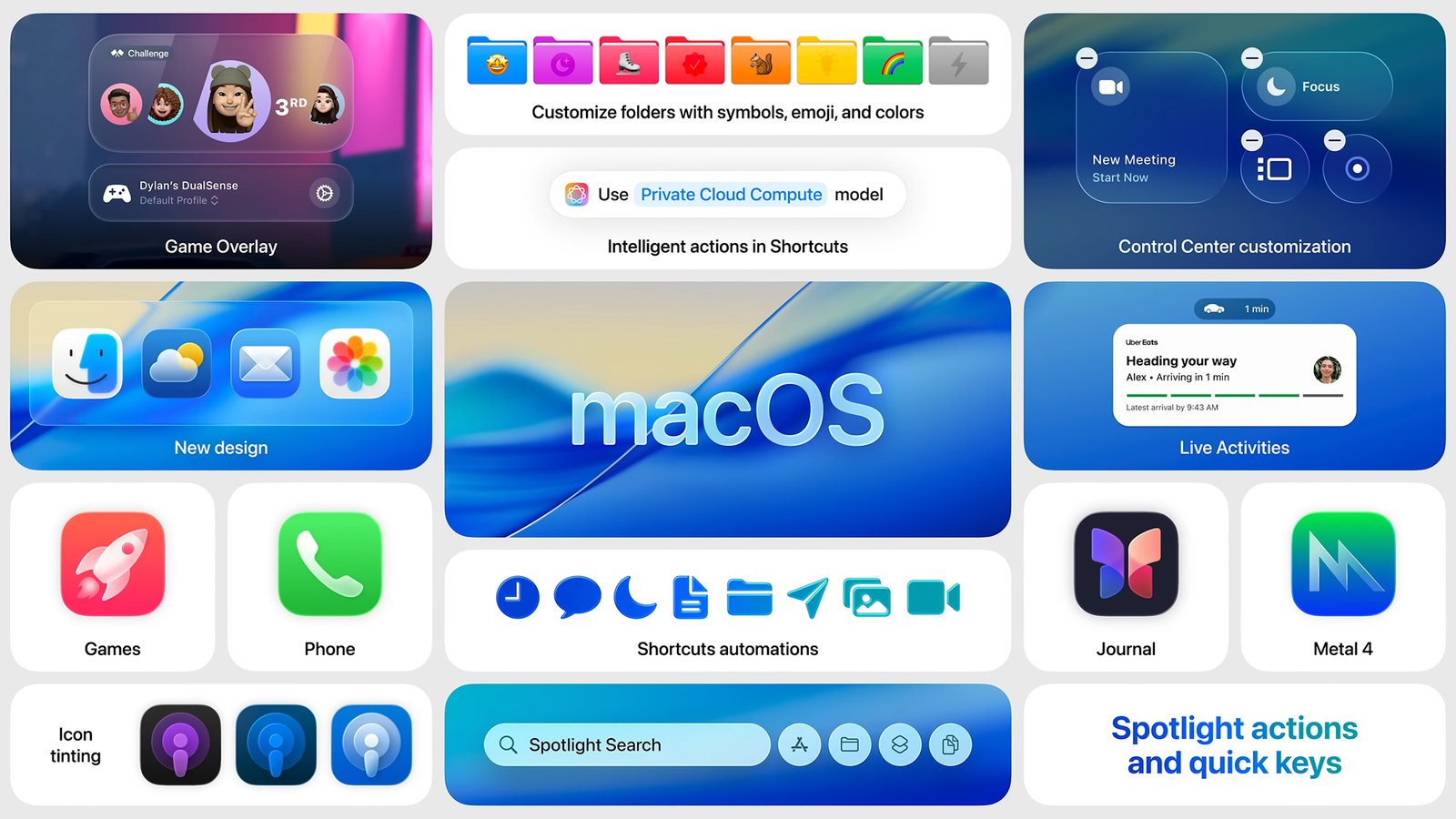
Experience Enhanced Video Calls with macOS Tahoe 26.2 and Edge Light
The highly anticipated macOS Tahoe 26.2 update has officially landed, bringing with it a suite of refinements and performance enhancements designed to elevate your computing experience. This latest iteration continues Apple’s commitment to innovation, delivering a more stable, secure, and intuitive operating system for Mac users across the globe. From under-the-hood optimisations to user-facing features, Tahoe 26.2 promises a smoother workflow and enhanced productivity.
Among the myriad improvements, one particular feature stands out as a game-changer for anyone frequently engaged in virtual communication: Edge Light. This ingenious new addition is set to revolutionise how you appear on video calls, providing a subtle yet powerful lighting solution directly from your Mac. It addresses a common challenge in the age of remote work, ensuring you always look your best, regardless of your ambient lighting conditions.
It is important to note that the Edge Light feature is exclusively available to users with an Apple Silicon Mac. This powerful integration leverages the advanced capabilities of Apple’s custom-designed chips, including the Neural Engine, to process and apply real-time lighting adjustments. This targeted approach ensures optimal performance and a seamless user experience, making the most of your cutting-edge hardware.
So, what exactly does Edge Light do? In essence, it intelligently detects your face during video calls and projects a soft, even illumination from the edges of your screen. This subtle glow helps to brighten your face, reduce harsh shadows, and create a more professional and engaging appearance. It’s akin to having a virtual ring light, but without the need for additional hardware or complex setups.
For professionals, maintaining a polished image during online meetings is paramount. Edge Light ensures that you always present yourself in the best possible light, fostering a sense of confidence and credibility. Whether you’re presenting to clients, collaborating with colleagues, or participating in a job interview, this feature helps you make a strong, positive impression every time. It’s a vital tool in today’s digital-first business environment.
Many of us have struggled with less-than-ideal lighting during video calls, from dimly lit rooms to harsh backlighting that leaves us silhouetted. Edge Light elegantly solves these common dilemmas by dynamically adjusting to your environment. It’s designed to counteract unflattering shadows and inconsistent lighting, ensuring a consistent and flattering illumination that highlights your features effectively.
The technical elegance behind Edge Light lies in its deep integration within macOS Tahoe 26.2 and its synergy with Apple Silicon. The system analyses your surroundings and applies sophisticated algorithms to determine the optimal light intensity and colour temperature. This real-time processing happens seamlessly in the background, without any noticeable impact on your Mac’s performance or battery life, making it truly remarkable.
In an era where remote and hybrid work models are increasingly prevalent, the quality of virtual communication has never been more critical. Edge Light empowers users to participate in video calls from virtually anywhere, confident that their lighting is taken care of. This flexibility reduces the need for elaborate home office setups, making professional video conferencing more accessible to everyone with a compatible Mac.
Beyond professional settings, Edge Light also enhances personal video calls with friends and family. It creates a more inviting and natural visual experience, making conversations feel more intimate and engaging. No longer will you be squinting to see a loved one’s face or struggling with distracting shadows; instead, you can focus entirely on the conversation at hand, fostering stronger connections.
Activating Edge Light is designed to be straightforward, likely found within your Mac’s System Settings under the Displays or Camera preferences, or perhaps integrated directly into compatible video conferencing applications. Apple’s commitment to intuitive user interfaces means that enabling this feature will be a simple toggle, allowing you to quickly benefit from its advantages without any complex configurations.
Whilst Edge Light is undoubtedly a headline feature, it’s important to remember that macOS Tahoe 26.2 delivers a host of other significant improvements. These often include enhanced security protocols, optimisations for battery longevity, and refinements to core applications, all contributing to a more robust and responsive operating system. The update ensures your Mac remains at the forefront of technology.
Upgrading to macOS Tahoe 26.2 is highly recommended for all compatible Mac users, especially those with Apple Silicon devices eager to leverage Edge Light. Not only will you gain access to this innovative lighting solution, but you will also benefit from the cumulative enhancements that make your Mac experience faster, safer, and more enjoyable. It’s an essential update for modern computing.
In conclusion, macOS Tahoe 26.2, with its groundbreaking Edge Light feature, marks a significant step forward for video communication on Apple Silicon Macs. It is a testament to Apple’s continuous pursuit of user-centric innovation, ensuring that every virtual interaction is clear, professional, and perfectly lit. Update your Mac today and experience the difference for yourself.
Unlock Today’s NYT Connections: Your Expert Breakdown
Welcome back, puzzle enthusiasts! Each day, the New York Times presents us with its captivating word association game, Connections, designed to challenge our linguistic prowess and lateral thinking. It has quickly become a beloved staple for many, offering a delightful brain-teaser to kickstart or wind down your day. Whether you’re a seasoned solver or just beginning your journey into its intricate web of words, the thrill of deciphering those hidden links is truly addictive.
For those new to the game, Connections tasks players with identifying groups of four words that share a common thread from a grid of sixteen. Sounds simple, doesn’t it? Yet, the genius lies in the clever misdirection and subtle nuances that often make those connections surprisingly elusive. This daily mental workout provides a unique blend of challenge and satisfaction, pushing you to think beyond the obvious and spot those less apparent patterns.
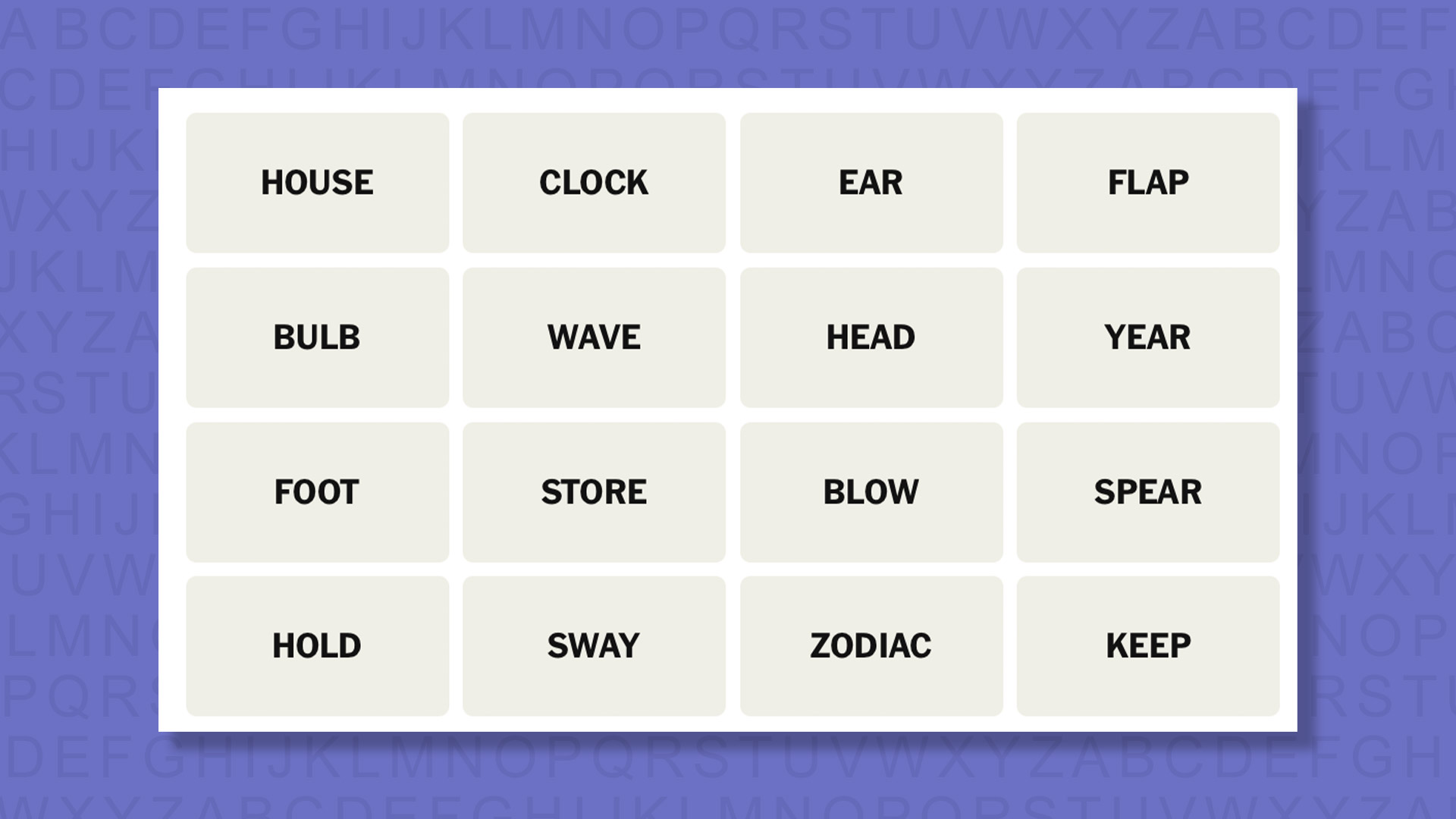
Today, as we delve into Game #915 for Friday, December 12, many of you will be seeking that extra nudge or perhaps a definitive solution to maintain your perfect streak. We understand that sometimes, despite your best efforts, one or two categories just refuse to reveal themselves. That’s precisely where a little guidance can prove invaluable, helping you to untangle the day’s trickiest arrangements without entirely spoiling the fun of the game itself.
Our aim here is not just to hand out answers, but to foster a deeper understanding of the game’s mechanics and common pitfalls. We believe that by offering carefully considered hints and insightful commentary, we can enhance your problem-solving skills for future puzzles. Think of this as your personal coaching session, designed to refine your approach and equip you with better strategies for tackling Connections each and every day.
The beauty of Connections lies in its ability to present seemingly unrelated words which, upon closer inspection, fall neatly into one of four distinct categories. Often, the challenge comes from ‘red herring’ words that could plausibly fit into multiple groups, leading players down dead ends. Learning to identify these deceptive words is a crucial step towards consistent success and mastering the game’s intricate design.
One effective strategy is to begin by looking for the most obvious connections first. Are there any four words that immediately jump out as being clearly related? Sometimes these ‘easy wins’ can provide a solid foundation, reducing the number of remaining words and making the subsequent groups simpler to identify. Don’t be afraid to mentally (or physically, if you’re using the app) move words around to visualise potential groupings.
Another helpful tip is to consider different types of relationships. Categories might involve synonyms, antonyms, words that precede or follow a common word, parts of a larger whole, or even homophones. Developing an awareness of this diverse range of potential connections will significantly broaden your strategic toolkit. The game designers love to mix things up, so a flexible mindset is key to success.
When you feel stuck, take a moment to step away if possible, then return with fresh eyes. A short break can often provide the mental reset needed to spot a connection you previously overlooked. Discussing the puzzle (without revealing answers!) with a friend can also sometimes spark a new line of thought, as different perspectives can highlight previously unseen possibilities within the word grid.
For today’s game, December 12 (Game #915), we’ve meticulously analysed the word set to bring you the most effective hints. We’ll guide you towards the overarching themes without directly giving away the solutions, allowing you to savour the satisfaction of discovery. Our commentary will then break down the reasoning behind each category, providing valuable learning points for future puzzles.
Remember, the colour coding in Connections — yellow for straightforward, green for slightly trickier, blue for challenging, and purple for the most obscure — often gives an indication of the difficulty. However, personal perception plays a huge role; what one person finds easy, another might find incredibly difficult. It’s all part of the game’s unique charm and its ability to engage players differently.
Look out for connections that might be based on puns, idioms, or cultural references. These categories often reside in the blue or purple difficulty bands and require a more expansive knowledge base or creative thinking. Sometimes, the connection is surprisingly literal, while other times it demands a significant leap of conceptual understanding. This variation keeps the game perpetually engaging and exciting.
As you approach today’s challenge, consider the nuances of each word. Does a word have multiple meanings? Could it be part of a phrase? Is there a less common definition that might fit a category? These are the kinds of questions that often unlock the trickiest groups. The devil, as they say, is often in the details when it comes to the New York Times’ ingenious word games.
So, whether you’re here for a gentle nudge in the right direction or you’re ready to review the full solutions and understand the logic, we’ve got you covered for Friday, December 12. Dive in, apply these strategies, and let’s conquer Game #915 together. Your daily dose of linguistic enlightenment awaits!
You get writing tools, you can change the tone, You get image playground to generate images. And you get Genmoji, Siri with chat, GPT. You get all the Apple intelligence in this laptop.
You can use it comfortably. And there are a lot of dedicated videos of Apple intelligence. If you want to know in detail, You can check it out. And you get Apple intelligence in M3, M2, M1. And Apple is the king of the ecosystem. You have to do screen sharing with iPad. You have to use AirDrop which is a very fast transfer from Apple to Apple devices.
And you have to copy and paste from one place to another. It becomes seamless. And if you have the same Apple ID loggged on your iPad, Mac and iPhone And the phone is ringing. You can attend it from anywhere. So, there is no problem in the ecosystem. And I think in the future as well, someone will be able to compete them. And the battery has increased by 1Wh. Earlier, M2, M3 used to get 52.6Wh. This has 53.8Wh. And obviously, it gives the best battery backup compared to the previous generation.
This is the latest 3nm based processor
M3 was also on 3nm. But, it has more number i.e. 1.2. And normally, in day to day tasks like multitasking, software, script writing, YouTube etc. The brightness was on adaptive. And the speaker volume was around 80%. It gave 12-13 hours of battery backup. So, there is no need to worry about the battery backup. You can get up to 20 hours of battery backup depending upon your task. And I didn’t find any idle drop. It was around 12-15 hours of idle drop.
There was 0% idle drop But, this can be a timely change. If your battery health is low, then the idle drop can increase. And the charger is of 35W. But, I was checking it online later. You get a 70W charger with 512GB for free. Meaning, when you order it at the same price point. The offline seller didn’t tell me about this. The display is exactly the same as found in the M2 & M3. They didn’t do anything new here. We have a 13.6-inch IPS display, Quad HD+.
It supports up to 70W charging
We are having 35W But, if you buy it, then buy it online. We charged it with 70W. 0-50% takes approximately 30 minutes. And 100% takes approximately 1 hour 20 minutes. And if you charge it with 35W, then 0-50% takes 60-70 minutes. And 100% takes 150-200 minutes. So, it depends on the type of charger you have. And it also depends on whether you are using a laptop or charging it in a locked condition. It’s great that you don’t have to use a power bank to charge it. You can directly charge it with a GaN charger or a PD charger. Meaning, you can use the Type-C port for charging and the MagSafe port for charging.
Its resolution is 2560×1664. It has a refresh rate of 60Hz, which Apple lovers don’t feel. They say It’s a very smooth display. Try 120-144 Hz once And the display is fingerprint magnet. You can see the fingerprints easily. And I would suggest you to get a screen guard. Because we were using the M2 Mac without a screen guard. So, the keyboard keys got printed and the screen got scratched. So, if you love your machine, then you should get a screen guard. And in our testing, the brightness was 521 nits peak.
It has an accurate color display
And we also tested the color gamut. It has 100% sRGB & 99% P3. Meaning, it has a great color gamut. You have to do color grading in photo & video on a professional level. The display is excellent. The only thing is that it has a glossy display. It would be better if you get a matte screen guard. Because you can see your face in the outdoor. It has a nano-texture, but it comes in Pro. And don’t ask me about the money. My kidneys are rumbling here & there.
It also supports HDR10, 10+, Dolby Vision. So, if you watch HDR content, Dolby Vision supported content & Netflix. Netflix doesn’t have a dedicated app. The color tuning is good. The colors are processed well. The HDR performance is good. Multimedia is excellent. And as we are talking about Multimedia. It offers good speakers in a thin & light laptop. If you run it in the browser, you get Dolby Vision support. And its HDR performance tuning is good. For example, we tested Costa Rica in 4K 60 HDR. The dynamic range was good.
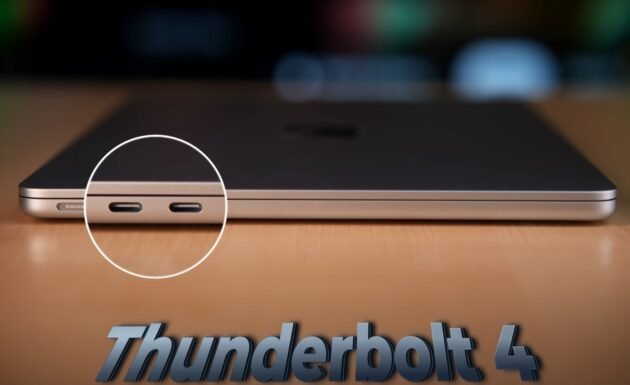
It’s like a Lenovo Yoga series in a Windows laptop. And then comes this It doesn’t feel like a Yoga. It has a different bass. But its speakers are good. Thunderbolt 4 ports. It supports fast data transfer. It also supports DP 1.4.
Macbook Air M4
If I compare it with M2 laptop, the sound is almost the same. The tuning is better. It also supports Dolby Atmos. If you connect its speakers & headphone speakers, Dolby Atmos support will give you full output. And in terms of ports It has 2 Type C of ports.
You can connect up to 2 6K 60Hz monitors. With its top lid on. You can get a maximum output of 3 displays. I think after some time, This will also go. He doesn’t have any respect for it. I have an opinion about the ports. It’s in the MacBook Air series. Both the ports are on the same side and they are close. And it supports 6K 60Hz. So it won’t be 60Hz in lower resolutions. It supports up to 4K 144Hz. There is a chart of display output. Pause the video to see. On the right side, we get a headphone-mic jack combo. For wide earphones.
So if you use a broad accessory like a headphone dongle. Or an adapter with a broad area. It kills the other port. They should’ve given some space on the ports. Or they should’ve changed the side. Their R&D team must be knowing about these things. This is my opinion.
It’s a single color backlit keyboard. It has a white light which is visible in the dark. The typing experience of the keyboard is amazing. The power button has a touch ID fingerprint. You can zoom in & zoom out. You get a center stage which is an automatic framing. Your webcam will move with you. It works very well. You get a portrait option which blurs the background.
It works very fast. The trackpad is fully clickable. You can’t say clickable because it has a haptic motor. When you press it, it feels like it’s physically pressing. But it’s not. It runs very well. Multi gestures are really good The trackpad feels very good. You can also change the intensity. It looks very natural. Rest, There is studio light. It darkens the background. You can increase or decrease the intensity to enhance your video calls.
Webcam test
I am using a laptop. It’s a good quality webcam and mic. It’s a 1080P 30FPS webcam. The quality is very good. I am already smart The webcam is amazing. What more can I say? Rest, Tell me how did you like it When you turn on the webcam, you get a photo booth feature.
I like the reaction feature. When you give a thumbs up, the screen shows a reaction. You can also send a reaction from here. Heart reaction, Thumbs up, Thumbs down are displayed on the screen. You can also add a background. If you want to take a meeting, you can add a background. It has different options. It has different photos & gradients. You can also set up your custom photos here. The desk view that you get on the iPad is very good.
When you turn it on, the camera works at a wide angle. And it shows my entire desk view. If you want to show it to someone in a meeting. The laptop’s screen is not turned upside down. If I turn it down, then it’s a different thing. But the laptop is straight. And then also it is giving desk view It gets a little bulged from the bottom, But it can be useful in meetings. This was the complete review of MacBook Air M4. I will give this laptop for Rs 1 Lakh with a discount of Rs 95K. I can say that it can be the best MacBook at this time. If you are upgrading from M2, Then definitely M1 & M2 users can upgrade. M3 users should wait.
If you want to make a desk setup with a screen, Then buy it for Rs 60,000. It’s the cheapest M4 device. There is a review on the website. And if you are wondering which is better, Mac or Windows. This is an old debate. Both are better in their own places. In some places, Windows is better. Specifically, in terms of X86 or compatibility.
Mac is very stable in terms of ecosystem, speaker, display. If I talk about this MacBook, Then obviously you can go for this. If you travel, then it’s a light 1.2KG device. You won’t feel a big jump because M3 is also running very well. And if you get a second-hand M3 in the market, then that can also be an option for you. And if you don’t want to buy a laptop, then buy a Mac Mini M4.
Performance wise, it’s very good. And overall, it is a good value for money device. If you go for 256GB or 512GB variant, then it becomes more expensive. For more review regarging this, Read here.
We reviewed the last M2. And we didn’t purchase M3. Just because M2 & M3 didn’t have a big performance difference. But if you see the difference between M2 & M4, it’s a good jump. We also reviewed the Mac Mini M4 on our w. You gave a good response to it.
What’s good about this M4? Are some things the same? And should you buy MacBook Air M4? If you are an M2 or M3 user. We will cover all these things in detail. First of all, look at the beauty.
Thin & light laptop
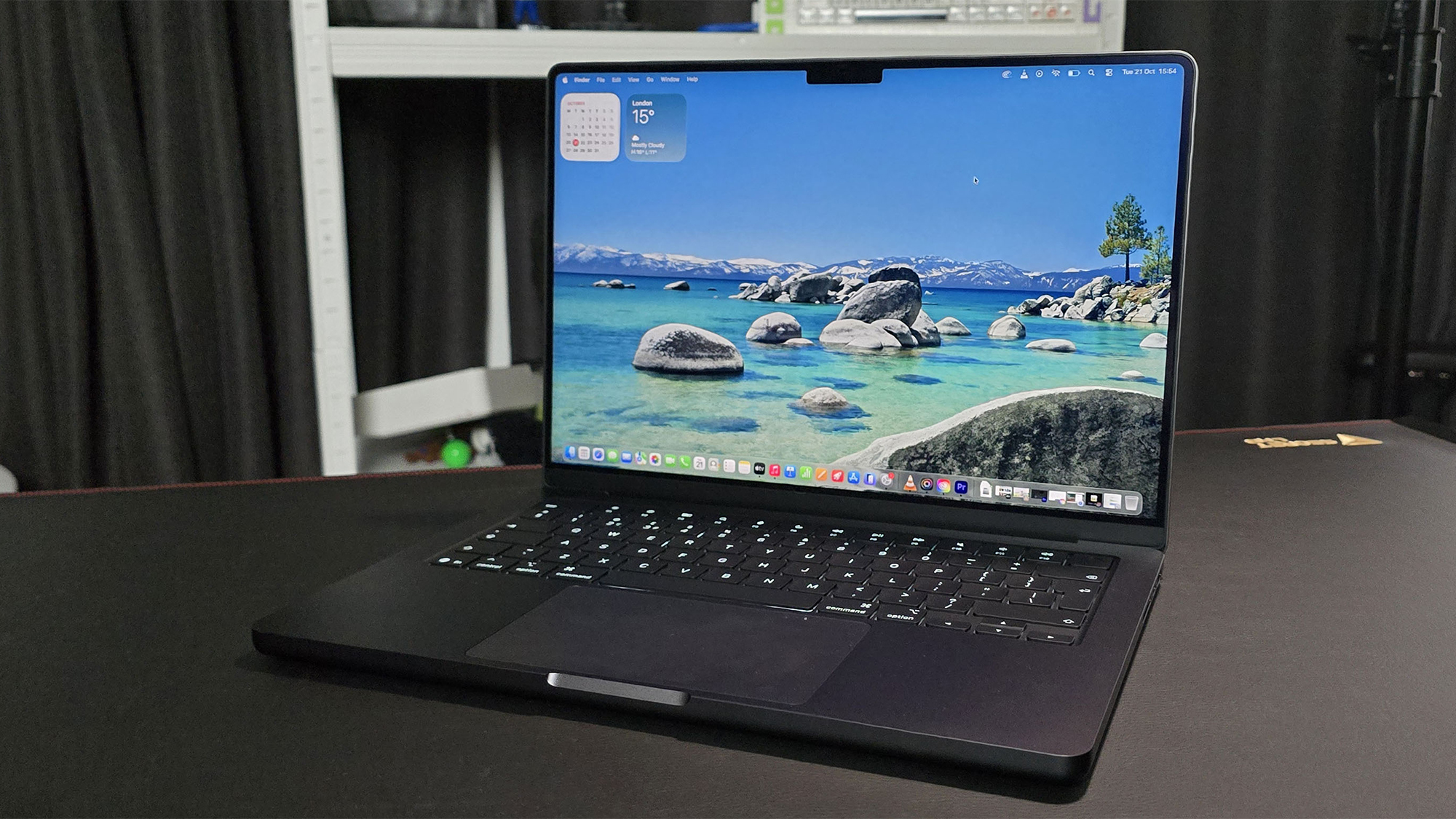
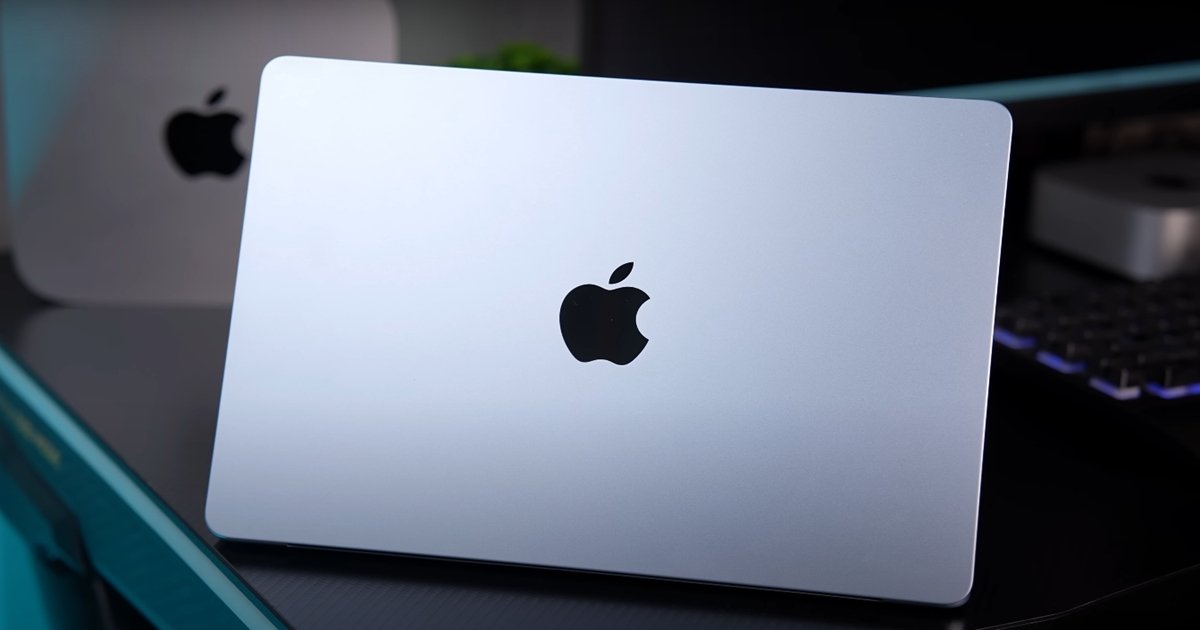
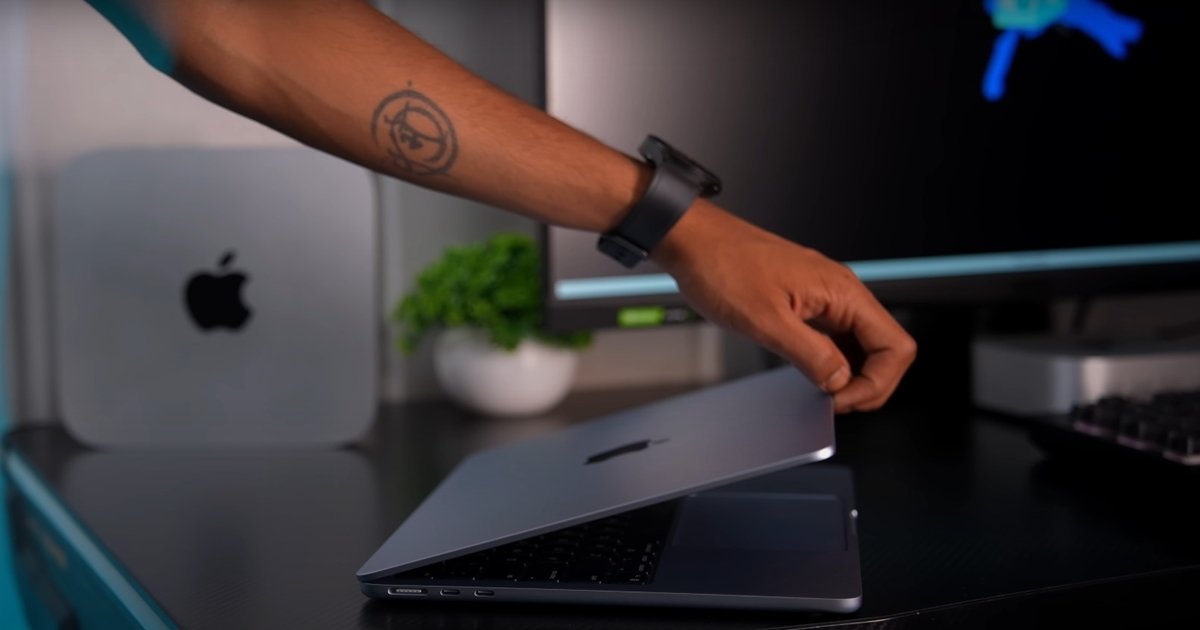
The whole laptop is the same here. It follows the pattern of M2. Look at the top lid, logo, from the inside. from the back. It’s the exact same laptop. And it’s made of complete body metal. The build quality feels solid. No top lid flex. No keyboard flex. The weight distribution is also good. You can easily open the lid with one hand. And it goes up to 120-130 degrees. And the weight is 1.2-1.3 kgs. And it’s 11.3 mm thick. So, It’s a thin & light laptop. If you are in the category of thin & light laptops.
And if you don’t want to buy Windows. Then MacBook Air series is for you. And the hinge is very stable. It stops wherever you stop. You can stop it at any angle. Until you close it by yourself. It’s a very good quality hinge. And the screen wobble is negligible0. Overall, the build quality of the laptop is solid. And in terms of variants, It comes in 13 inches & 15 inches. We have taken the 13 inches variant. We like the smaller one. LAPTOP. And it starts with a minimum of 256 GB. With Rs 99990. i.e. Rs 1 lakh.
Macbook Air M4
There is a discount of Rs 5000-6000. Student discount card offer. So, you can get it for Rs 90,000. The base variant. And you can spend as much as you want. If you want more storage, then you can pay more. And in terms of colours, We have this bluish colour. This is the latest colour. The rest is normal. It’s a silver colour. We have a blue colour M2. It’s the same. And there is a golden colour. So, I was liking this. And it doesn’t have an active thermal system. It has passive cooling. It doesn’t have any fan.
10-core CPU & 10-core GPU
Just thermal pads are used inside. Because of which its cooling is maintained. And obviously, it gets hot. If you do more extensive productive tasks, Then you will feel the heat on its body. Because it has a metal body. I will talk about the performance in detail later. Wait, wait. And in terms of technology, We get an Apple Silicon M4 chip. The variant we have taken is 512 GB. It has a 10-core CPU & 10-core GPU. If you take the base variant, The 256 GB variant, It has an 8-core GPU. You will get less performance. If you wont wont a game play FPS test, so read here.
You may not feel it in real life. But you will get to know in the on-paper benchmark. And Apple has understood that it won’t work in 8 GB. Last year, they were abused a lot. So, you will get 16 GB minimum RAM. And if you want more RAM than that, Then get ready to sell your kidneys. If you go up to 32 GB, You will have to pay Rs 40,000 extra. Wow! Who will spend so much money on a MacBook Air? Then go to the Pro side. And we have a 512 GB SSD variant. You can see the read & write speed of this variant.
I have heard that the 256 GB variant has a low read & write speed. It is the same with the M4. I don’t know, if you have taken it, If the speed is matching with me. Or you can check it online. I don’t know. And if you select the storage variant up to 1 TB, Then you will have to pay Rs 20,000 extra. I think, If you are buying a MacBook Air for a productive task, Then you can go for the 256 GB base variant. And you will get an external 2 TB SSD for Rs 20,000. In which all your work will be done.
And if you want more storage, Then go for the 512 GB variant. Don’t try to go more than that. It takes a lot of money. It has a 16-core Neural Engine. Which means AI performance is very good. I will show you. The Wi-Fi is upgraded. You will get 6E as compared to 6. And the Bluetooth version is 5.3. And I think if it was 5.4, then it would have been future-proof. If we compare M2, M3, M4 side by side, The M4 is 3nm based. Which means it is more power efficient. And the bandwidth is 120 Gbps. Which means the speed between the CPU and the memory will be better.
You will be able to do better processes. And if we compare performance wise, Starting from M1 to M4, It is a very stable jump. It is a 10-15-20% continuous jump from M1 to M4. And this is in Cinebench R23.
Then we saw Geekbench. You can also see it in Geekbench. The M4 is very good. It has reached very high. So for M1 and M2 users, M4 is an option. For M3 users, You can see If You want to spend some money. Otherwise, you won’t feel much difference. Then we took the scores of Cinebench 2024.
We see the AI performance
Geekbench 6 CPU Benchmark. It has a very good multi-core and single-core score. The processor has no issues in day-to-day tasks. We opened the tabs blindly in Safari browser. And the laptop didn’t have any issues. Because the processor is good. And we get 16GB RAM, which is a big benefit. Rest, you have to do coding, web development, music production. If you are using a Macbook, then you can run Logic Pro X. And there will be no issues. Because the processor is good.
We took Geekbench AI Benchmark. The first one is of the CPU. And then we took the scores of the Neural Engine. And the numbers are very good. Then we ran DeepSeek R1 model. Which has 14 billion parameters. And we put this prompt in it. Which you can see on the screen. This is a very complex prompt. And if DeepSeek is too deep in name, Then the result is too deep. It took 2 minutes and 49 seconds. And I was trying to run the same thing in M2. But it stopped breathing. It said, sorry, I can’t do it.
Probably, there may be RAM constraints in it. Because we have 8GB RAM. Let’s talk about the creators. We ran the Puget Benchmark of Photoshop. 10,000 plus scores. No matter how big the PSD is. Or if you want to use Neural Filters. It says, I will run Photoshop. There is no problem. You can see the numbers of Premiere Pro and DaVinci Resolve. I will conclude the editing here. We ran 4K 60 FPS footage. Which is an 8-bit project. And we ran a full-fledged project in it. The timeline rendering is very smooth.
And our experience was very good. But I will say one thing about the Macbook Air. There is no active cooling in it. So it depends on your timeline, effects, transitions, text. And how long you are using it. And what is your room temperature.
AMD’s Strix Point series GPU
You may or may not get lags & stutters. Or you may not get it. If you are running it in an AC room. And you are doing light projects. Then also there is no problem. But I can say that the type of editing that we have. It works well in that. Let’s talk about the GPU. Then AMD’s Strix Point series. Which we did in TUF A14 and VivoBook. So we compared them. In Cinebench R23, you can see that M4 is performing well.
GeekBench 6 got an OpenCL score. Which is very good according to iGPU. And we took a render of BMW in Blender. It threw it in 22 seconds. So its iGPU is very good. According to its form factor. But still, You will get the same cooling. And it is very subjective. What type of project you are working on. But I will still tell you that if you want to do more tasks related to GPU. I will say that you can run entry-level tasks like 3D modeling, rendering, architecture, after effects. If you go to the more advanced level.
Then go to Macbook Pro. If you are looking at Macbook. Otherwise, you will get better options in Windows with a good 4050-4060 GPU. Which will give you a very good performance in terms of GPU. And there is a lot of competition. Because Snapdragon has launched ARM based chipsets. Then Intel Core Ultra Series 2 came. Which will give you better performance and better battery backup.
If you compare the numbers with Snapdragon X Elite. It is a little less. But Snapdragon X Elite doesn’t have compatibility. It can’t even run games natively. And Macbook is 4th generation now. Apple’s ARM laptops support all native applications. Whether it is a productive application or their games. But if you look at the performance of a single core. In that, Macbook is at the next level. It performs very well in more intensive tasks. And as I told you, Snapdragon X Elite doesn’t have native apps.
Snapdragon X Elite is at the bottom
Its future is bright. But I can’t say anything right now. AMD is really amazing. If you go for any thin and light laptop from Strix Point. Which has Ryzen AI9 HX370 processor. This is at the next level. Its IGP & CPU is also very strong. If you want to go for Windows. Pause the video and check the graphics. If you want to know in more detail. And this is a laptop’s performance. But talking about gaming. The native games that we get in the app store. Resident Evil, Death Stranding.
And all the officially released games. They run very well. They are made for this architecture. But if you want to run Windows games on Macbook. Then we have used a crossover app. It was able to perform better. This is emulation gaming. We can’t blame the device or the software. Through which you can play all the Steam library games on your Macbook. And it has a lot of tutorials. And we had to test GTA V as per our tradition. And we were not getting a good performance here. We also tested the game on Mac mini M4.
Because both have different chassis. Mac mini M4 has a fan. This doesn’t have a fan. But it can be improved in time. You will get an idea in the future. And we are using Rosetta’s latest stable version 2.1. We used 2.0 B3 Beta in Mac mini M4. It was performing better. So it may or may not be be improved in the future. We can’t say anything We tested Hellblade 2. We didn’t get any playable FPS.
We tested FSR 3 with the lowest possible settings
We were able to get around 15 FPS. Then we tested Hogwarts Legacy. We were getting around 30 FPS. We also got very strong frame drops. Then we tested Cyberpunk. In Cyberpunk, we were getting frame generation FSR 3 at the lowest possible settings. So we were able to get better FPS. But the visuals are like. It’s better if you don’t play on these visuals.
Macbook Air M4
Then we tried Black Myth Wukong. It had frame generation, FSR 3. The visuals were sacrificed a lot. Sometimes there were some drops. So we conclude here. You can play the official games of the MacBook with a lot of stability. And you can mirror the iPhone in the new Mac OS Sequoia. So the whole iPhone is mirrored on your screen, You don’t need to pick up the phone. And you get Apple intelligence in this laptop.
But the crossover scene is not working really good currently. We might get something better in the future. And yes, it was very hot. The temperature was around 40°C near WASD. And overall the temperature was around 37-39°C. And we were getting this much temperature from the back as well. So the device was very warm.