Free Up Android Storage: Clear WhatsApp Media, Downloads, and Offline Files

Identify WhatsApp media that eats space
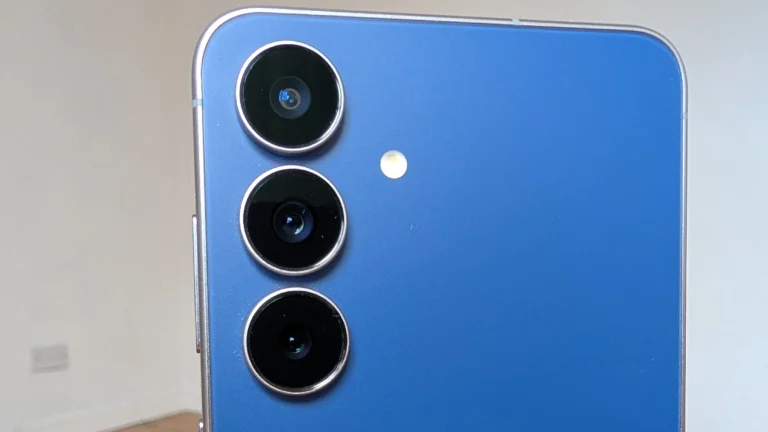
WhatsApp often stores copies of every photo and video you send. On a Samsung Galaxy S25 these files can quickly add up to several gigabytes. Open the file explorer and navigate to Android/media/com.whatsapp/WhatsApp/Media/. Look inside the WhatsApp Images/Sent and WhatsApp Video/Sent folders and delete any items you no longer need. The originals you already sent remain in the recipient’s chat, so removing the local copies is safe.
You can also clear space from within WhatsApp: Settings → Storage and data → Manage storage. The screen shows which chats consume the most space, letting you select and delete unwanted media. This only removes files from your device, not from other users.
Clean out the Downloads folder
The Downloads folder is a common storage hog on any Android phone, including the iPad Air M2 when used with Android apps via emulation. Old APK installers, large video files, and ZIP archives linger long after you’ve used them. Open Files by Google, go to All Storage → Internal Storage → Download, sort by size and delete the biggest items you no longer need. Regularly checking this folder prevents unnecessary buildup.
Remove offline content from apps
Streaming, podcast, and navigation apps store data for offline use. Google Maps, for example, lets you delete saved maps under Profile picture → Offline maps. Music apps such as Spotify or podcast apps have a Downloads section where you can purge tracks you haven’t listened to in weeks. Only delete offline files if you are sure you won’t need them without an internet connection.
Three file managers to help you tidy up
Files by Google is pre‑installed on many devices and offers a clean interface, size‑based sorting and suggestions for duplicate removal. It is lightweight and ad‑free.
Cx File Explorer provides a graphical storage analysis view, access to both internal and external storage, and integration with cloud services.
Total Commander gives advanced users a two‑pane view, batch operations, ZIP support and network access such as FTP and SFTP.
Do you really need cleaner apps?
Most so‑called cleanup apps claim to delete system caches, but Android already manages cache files efficiently. Using third‑party cleaners can risk removing essential data. Stick to the built‑in storage settings and a trusted file manager instead.
Use Android Settings to pinpoint storage hogs
Android 16 includes a built‑in storage dashboard under Settings → Storage. The view breaks down usage into Apps, Images, Videos, Audio, and Other files. Tap any category to see a list of the largest items. On a Samsung Galaxy S25 you can also enable Smart Storage, which automatically removes backed‑up photos and rarely used apps after you confirm the action.
Back up photos before deleting
Before you delete large image folders, consider backing them up to a cloud service such as Google Photos or OneDrive. Once uploaded, you can use the “Free up space” option in Google Photos to safely remove local copies while keeping them accessible online. This works equally well on devices like the Apple Watch Series 10 when paired with an Android phone for notifications.
Quick checklist for freeing Android storage
1. Review WhatsApp media folders and delete sent copies.
2. Sort the Downloads folder by size and purge old files.
3. Open each streaming or navigation app and remove unused offline content.
4. Use Settings → Storage to see which categories occupy the most space.
5. Keep a reliable file manager like Files by Google for regular maintenance.