Protect Your Data: Delete These UK Apps Now

Are Your UK Apps Stealing Your Data?
In today’s digital age, it’s easy to get caught up in the convenience of having numerous apps at our fingertips. However, many of these apps request extensive permissions that don’t always seem justified. For instance, a torch app shouldn’t need access to your microphone. It’s time to take a closer look at the apps on your device and delete those that are secretly stealing your data.
A torch app, for example, doesn’t need access to your microphone or contacts. Yet, many of these apps demand such permissions, making them a potential threat to your data security. It’s essential to be cautious when granting permissions, especially when they seem unnecessary.
Lifestyle and health apps, such as those for sleep analysis or calorie tracking, often request permissions that have nothing to do with their actual function. They may ask for access to your location, microphone, or contacts, which can be used to create detailed profiles of your behaviour. This information can then be sold to third parties, including insurance companies and pharmaceutical firms.
Navigation apps, like Google Maps, require your location to provide accurate directions. However, many of these services permanently store your full location history and analyse it. This information can be used to create detailed movement profiles, which can be purchased by advertisers. To protect your data, consider using alternative navigation apps like OsmAnd, which works offline and doesn’t store your location history.
Shopping apps, such as SHEIN and Amazon, have been suspected of demanding more permissions than necessary. They may use your location data, search queries, and purchase history to make accurate predictions about your preferences. To avoid this, consider shopping on your computer instead of using mobile apps.
Weather apps are another common culprit when it comes to placing advertising trackers. Many of these apps request access to your contacts, photos, or camera, which is unnecessary for their core function. Instead, consider using the built-in weather function on your smartphone, which is just as reliable without the need for additional permissions.
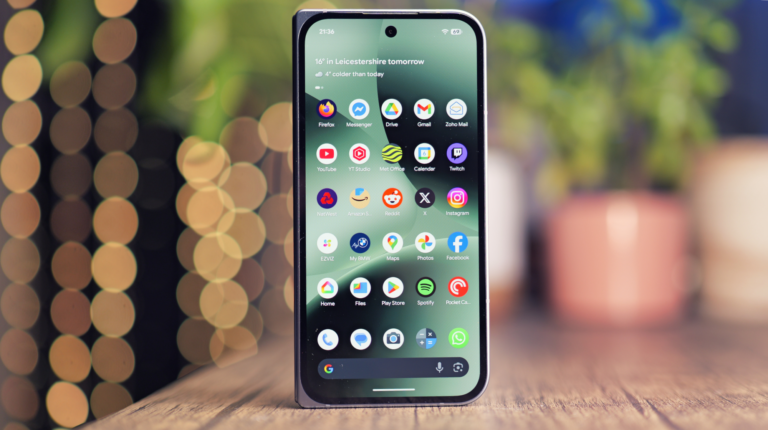
To check the permissions of your apps, go to your device’s settings. On Android, open Settings and tap ‘Apps’. On iPhone, go to Settings > Privacy & Security. From there, you can see which apps have access to your location, microphone, camera, and contacts, and adjust the settings as needed.
As a general rule, only grant an app the permissions it needs for its core function. Restrict location access to ‘while using the app’ and never allow it to run permanently in the background. Be cautious when granting access to your microphone, camera, and contacts, and only do so when you are actively using the relevant function within the app.
By being mindful of the apps you use and the permissions you grant, you can protect your data and maintain your online security. Remember to regularly review your app permissions and delete any apps that are secretly stealing your data. Your privacy is worth it.