How to Remove Lock Screen Ads from Amazon Fire Tablets Easily
Understanding Lock Screen Ads on Amazon Fire Tablets
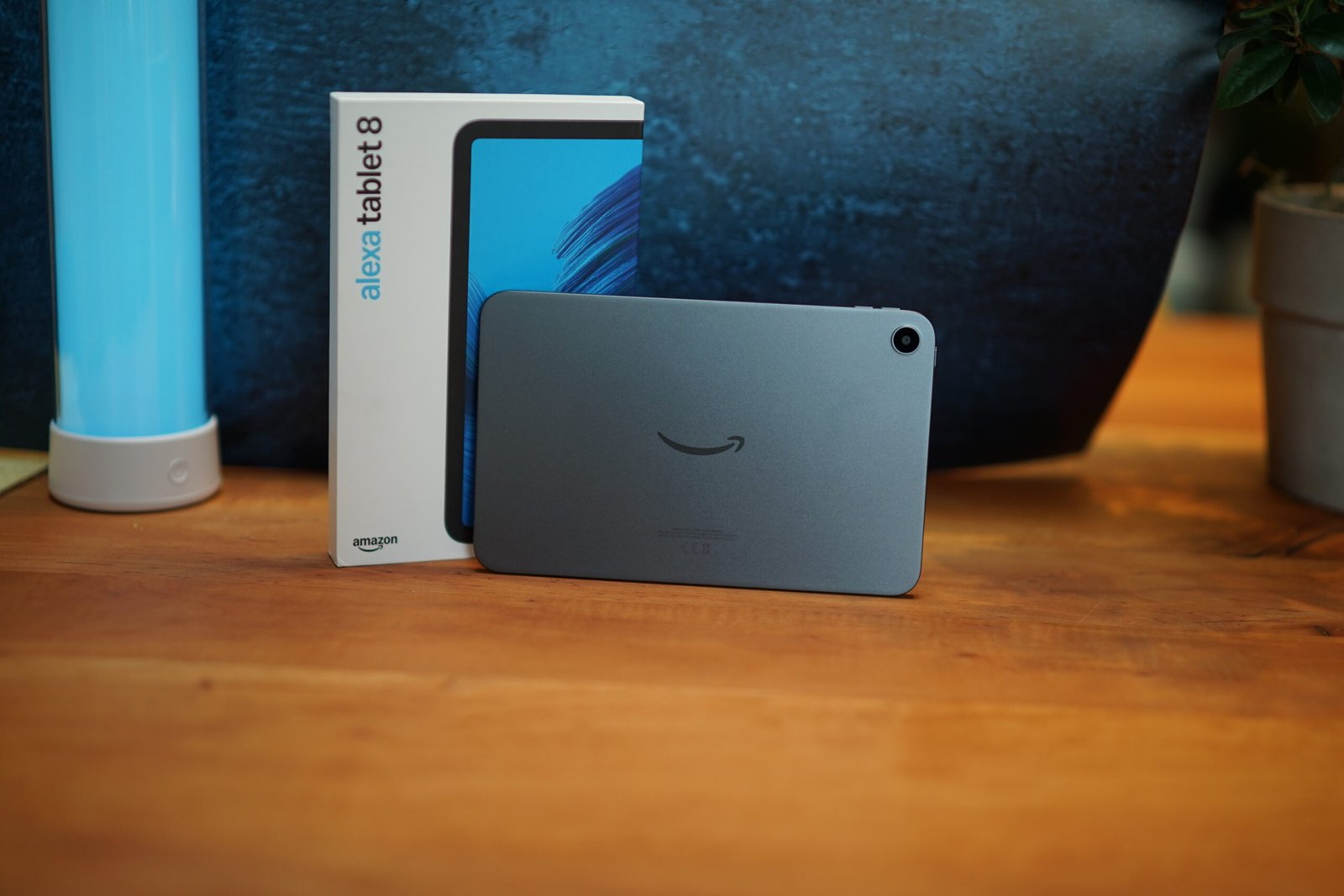
Amazon Fire tablets including the Fire HD 10, Fire HD 8, Fire 7, and Fire Max 11 come with a special offer option that displays advertisements on the lock screen. This arrangement lowers the purchase price by fifteen to twenty dollars depending on the model. The ads appear as screensavers when the device wakes from sleep mode. They promote Amazon products, Kindle books, Prime Video shows, and third-party services.
Many buyers choose the ad-supported version to save money upfront. However, the constant promotions can become intrusive over time. Fortunately, Amazon provides a legitimate way to remove these advertisements without voiding warranties or violating terms of service.
Why Amazon Includes Ads on Fire Tablets
The ad-supported program helps Amazon subsidize hardware costs. When you purchase a Fire HD 10 or Fire HD 8 with special offers, you agree to view personalized advertisements. These ads leverage your shopping history and Alexa interactions to show relevant content. The Fire 7 and Fire Max 11 follow the same model.
Amazon discloses this arrangement clearly during purchase. The product listings specify With Ads or Without Ads pricing tiers. Choosing the ad-supported version means accepting lock screen advertisements in exchange for a lower price point.
Method One: Remove Ads Through Amazon Account Settings
The simplest approach uses your Amazon account dashboard. Follow these steps on any web browser:
- Sign in to your Amazon account
- Navigate to Your Devices under Account & Lists
- Select the specific Fire tablet model (Fire HD 10, Fire HD 8, Fire 7, or Fire Max 11)
- Click Remove Offers next to Special Offers
- Confirm the one-time fee payment
The fee equals the original discount amount, typically fifteen dollars for Fire 7 and Fire HD 8 models, twenty dollars for Fire HD 10 and Fire Max 11 models. Payment processes through your default payment method. Ads disappear within twenty-four hours after the device syncs with Amazon servers.
Method Two: Contact Amazon Customer Service
If the self-service option fails, contact Amazon support directly. Use the Help section on the Amazon website or app. Request removal of special offers from your Fire tablet. Representatives can process the request manually. This method works well if you purchased the device as a gift or lack access to the original Amazon account.
Have your device serial number ready. Find it in Settings > Device Options > About Device on the Fire tablet. The representative will verify ownership and apply the removal after payment authorization.
What Happens After Ad Removal
Once processed, your Fire HD 10, Fire HD 8, Fire 7, or Fire Max 11 will display standard lock screen wallpapers instead of advertisements. You can customize the background through Settings > Display > Wallpaper. The device retains all Alexa functionality, including voice commands, smart home control, and routine automation.
System updates continue normally. The removal persists through factory resets because the change registers on Amazon servers linked to your account. If you deregister the device, the ad-free status remains attached to the hardware serial number.
Considerations Before Removing Ads
Evaluate whether the one-time fee justifies ad removal. The Fire 7 ad-supported version saves fifteen dollars. The Fire HD 8 saves fifteen dollars. The Fire HD 10 saves twenty dollars. The Fire Max 11 saves twenty dollars. If advertisements do not bother you, keeping them provides ongoing savings.
Parents managing child profiles should note that ad removal applies device-wide. Children using the tablet will no longer see promotional content. This can reduce accidental purchases from advertised products.
Alternative: Purchase Ad-Free Models Initially
When buying new Fire tablets, consider the Without Ads version. The price difference matches the removal fee. Purchasing ad-free from the start avoids the extra step. Check current pricing for Fire HD 10, Fire HD 8, Fire 7, and Fire Max 11 models during sales events like Prime Day or Black Friday when both versions may receive discounts.
Final Thoughts
Removing lock screen ads from Amazon Fire tablets is straightforward and legal. Whether you own a Fire HD 10, Fire HD 8, Fire 7, or Fire Max 11, the process takes minutes through your Amazon account. The one-time fee restores a clean lock screen experience while preserving all Alexa capabilities. Choose the method that suits your situation and enjoy an advertisement-free Fire tablet experience.