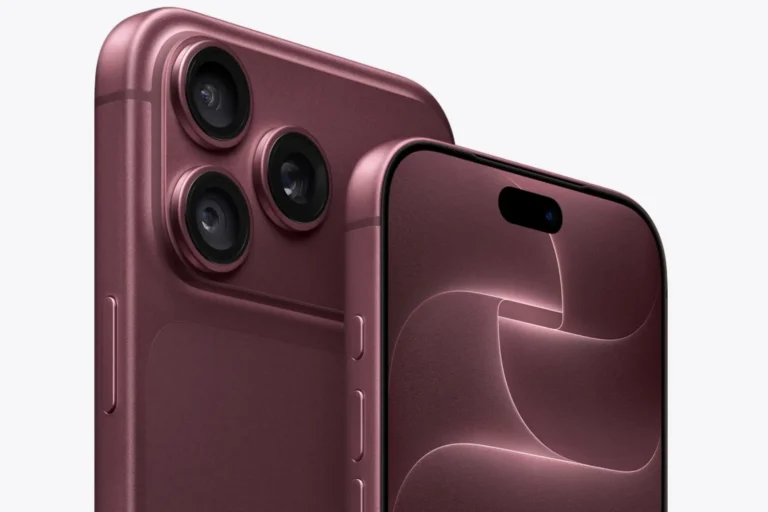
Unlock Your iPhone 17’s Full Potential with These Expert Tips
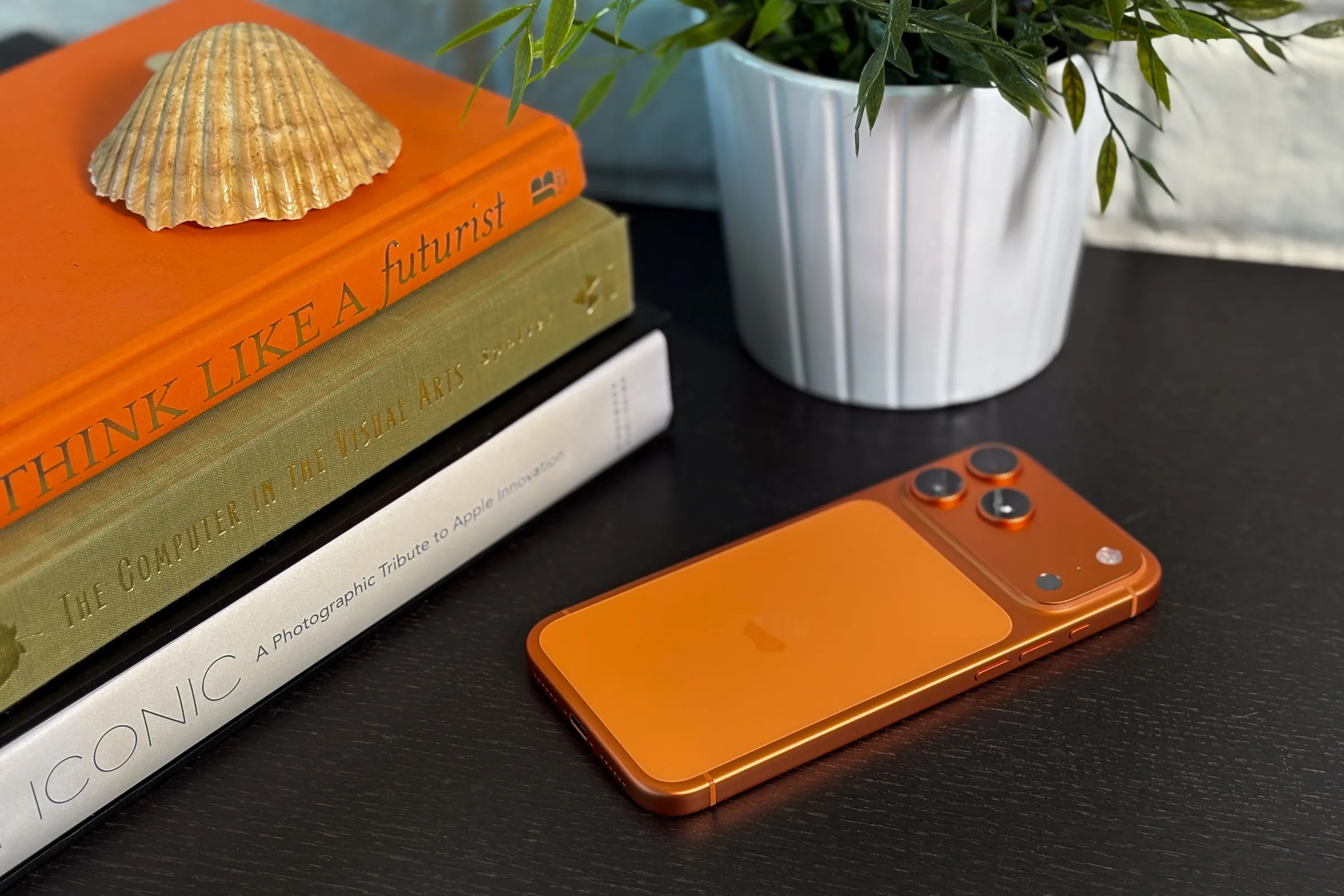
Maximise Your iPhone 17 Experience
As an iPhone expert, I’m excited to share my top tips and tricks to help you get the most out of your iPhone 17. From customising your lock screen to enabling hidden features, these tweaks will take your iPhone experience to the next level.
First, let’s talk about customising your lock screen. With iOS 26, you can now scale the clock and choose from various fonts and colours. You can also enable the Always On Display feature, which makes for a useful combination.
Another exciting feature is Spatial Scenes, which adds a faux 3D effect to your lock screen. To enable this, simply go to Settings, tap on Wallpaper, and select a compatible image. You’ll then see a hexagonal icon, which you can tap to enable the Spatial Scenes feature.
In addition to these features, you can also customise your keyboard experience. By long-pressing on the shift key, you can access capital letters without having to toggle the Shift key. You can also long-press on the numbers key to access numbers without switching to the numbers view.
For a better typing experience, you can also enable the haptic touch feature. This feature provides a more precise and distinct typing experience. To enable it, go to Settings, tap on Accessibility, and select Touch. Then, tap on Haptic Touch and choose from the available duration options.
Furthermore, you can disable Control Centre access from your lock screen for added security. To do this, go to Settings, tap on Face ID & Passcode, and scroll down to the Allow Access When Locked section. Then, toggle off the Control Centre option.
Another useful feature is the ability to set a custom ringtone. Simply download the audio file you want to use, open the Files app, and long-press on the file. Then, tap on Share and select Use As Ringtone.
In terms of battery life, you can enable the Battery Percentage feature to keep track of your phone’s charge. To do this, go to Settings, tap on Battery, and toggle on the Battery Percentage option.
You can also set a Charge Limit to prolong your battery’s lifespan. To do this, go to Settings, tap on Battery, and select Charging. Then, drag the Charge Limit slider to your desired level.
Additionally, you can enable Adaptive Power Mode to reduce power consumption. To do this, go to Settings, tap on Battery, and select Power Mode. Then, toggle on the Adaptive Power option.
For a more comfortable viewing experience, you can enable Vehicle Motion Cues. This feature adds little dots around the edges of the screen to help reduce motion sickness. To enable it, go to Settings, tap on Accessibility, and select Motion.
Lastly, you can make Apple Intelligence more intelligent by adding ChatGPT search and results. To do this, go to Settings, tap on Apple Intelligence & Siri, and select Extensions. Then, tap on ChatGPT and follow the prompts to set it up.