
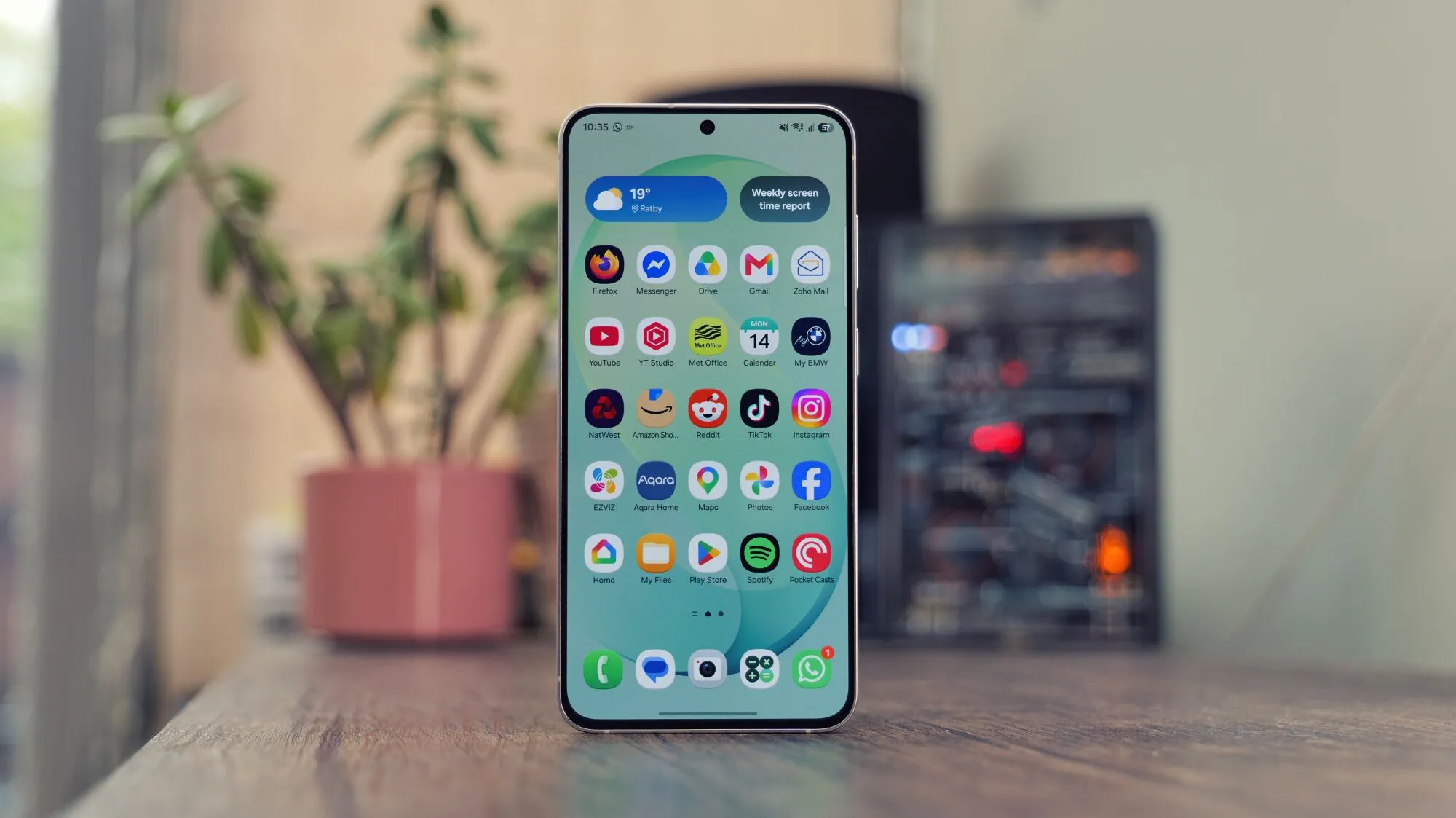
My FanCam Reframes Videos
One UI 9 brings My FanCam to most recent Samsung devices such as the Samsung Galaxy S26 FE and the Samsung Galaxy Z Fold 8 Ultra. Record a wide‑angle clip, open it in the Gallery, tap the Galaxy AI icon and select My FanCam. Choose the person you want to follow, pick an aspect ratio – 9:16 for TikTok, 16:9 for YouTube, or 1:1 for Instagram – and let the AI keep the subject centred. It works like a built‑in gimbal without any extra hardware.
Freshen Up the Quick Panel
The Quick Panel now supports full layout editing. Swipe down from the upper right, tap the pencil icon and drag sliders, media tiles and inactive buttons wherever you like. Resize the brightness or volume sliders, switch them from vertical to horizontal, and add a large media control tile if you stream music often. When you’re happy, hit Done and the new arrangement sticks.
Stop Doomscrolling with AI Network Guard
AI Network Guard adds a PIN barrier to selected apps. Open Settings ► Connections ► Wi‑Fi ► Intelligent Wi‑Fi, enable Connectivity Labs and find AI Network Guard. Set a six‑digit Guardian PIN, choose Restrict Apps and pick social or gaming apps that tend to steal your focus. You can also schedule Downtime so the block only applies during work hours.
Reduce Motion Sickness with Motion Assist
Motion Assist displays subtle dots at the screen edges when the phone detects vehicle movement. Enable it under Settings ► Google services ► All services ► Motion Assist and toggle Start in a moving vehicle. Add a Quick Settings tile for manual control and customise dot shape, opacity and colour to match your preference.
Stay Organized with Call Brief
Call Brief surfaces contextual information during calls. Turn it on via Settings ► Security and privacy ► More privacy settings ► Personal data intelligence and enable the Phone toggle. When you dial an international number, Call Brief shows the recipient’s local time. If you mention a meeting, it can suggest a Calendar entry with automatically adjusted time zones.
Protect Privacy Using Quick Lockdown Mode
Press and hold Volume Down and the Power button together to activate Quick Lockdown Mode. Biometric unlocks are disabled until you enter your PIN, password or pattern. This one‑tap security layer is handy when you need to hand your phone to someone else.
Try Bixby’s Raise‑to‑Speak Gesture
Bixby now supports a raise‑to‑speak shortcut. Go to Settings ► Advanced features ► Bixby and enable Gesture wake‑up. Lift the phone to your mouth and start talking without saying a wake word or pressing a button. Bixby can adjust settings, find files or chain commands such as “find photos from Paris, create an album, share with Alex”.
Silence Background Noise with Audio Eraser
Audio Eraser works not only on recordings but also on streaming apps. While watching a YouTube tutorial, swipe down to open the Quick Panel, tap the Audio Eraser icon and choose a reduction strength. Enable Voice Focus to boost speech while muting music or ambient sounds.
Deep Customisation via Good Lock
Good Lock, available from the Galaxy Store, adds 25 modules for power users. Home Up lets you redesign the home‑screen grid, place widgets freely and hide the app drawer. Sound Assistant provides per‑app volume sliders and a custom EQ. QuickStar cleans status‑bar clutter or adds a live network‑speed indicator.
Unlock Pro Camera Controls with Camera Assistant and Expert RAW
Install Good Lock and open the Camera Assistant module to disable automatic lens switching, lower default sharpening and enable anamorphic lens support in the stock camera app. For true RAW shooting, download Expert RAW. It offers Astrophotography mode with star tracking, a digital ND filter simulation and a virtual reflector for fill light.
One UI 9 packs a wealth of hidden tools that can make your Samsung Galaxy S26, Galaxy Z Fold 8 Ultra or any compatible device feel fresh. Explore these features today and get the most out of Android 17 on your Samsung phone.