
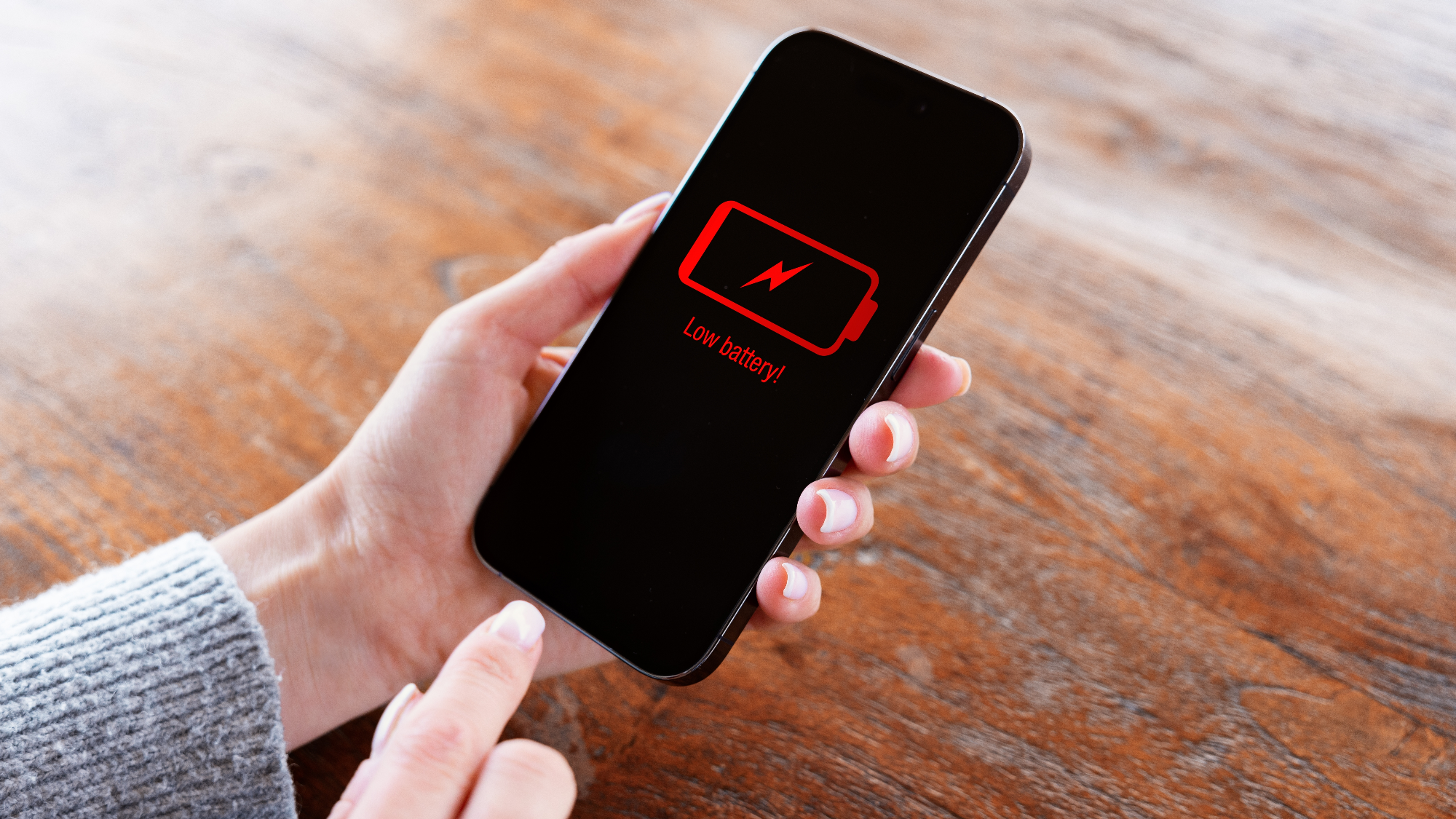
Why battery health matters
Over time the lithium ion cells inside every Android device lose capacity. When the battery can no longer hold a charge similar to when it was new, you may notice faster drain, sudden shutdowns, or a lower on‑screen percentage. Understanding the health of your battery helps you decide whether a simple optimisation, a replacement, or a new phone such as the Samsung Galaxy S25 or Google Pixel 8 is the right move.
Finding battery health in Android settings
Most modern Android phones include a built‑in health indicator. Open Settings, tap Battery, then look for Battery information, Battery status or Battery details. On Samsung devices the path is Settings → Battery → Battery information, and the Samsung Members app also offers Support → Phone Diagnostics → Battery Status. Google Pixel users can go to Settings → Battery → Battery health, while OnePlus 12 owners find the data under Settings → Battery → Battery health (or About phone → Battery information).
What the numbers mean
When you locate the health screen you will usually see a percentage and a simple label such as Normal or Low. A reading of 100‑90 percent means the battery is still in good condition. Between 89‑80 percent indicates normal wear, but you may notice shorter screen‑on time. Below 80 percent the drop becomes noticeable, and under 70 percent you can expect unexpected shutdowns and rapid decline. If only a label appears, Normal generally corresponds to over 80 percent capacity, while Low signals below that threshold.
Using a third‑party app
If your device does not display a health rating, the free AccuBattery app from the Play Store can estimate capacity based on charging patterns. Install the app, let it collect data for a few days, then check the Status tab for a health percentage and remaining capacity in mAh.
Hidden diagnostic codes
Many Android phones also support a secret code. Open the Phone app and dial *#*#4636#*#*. A diagnostics menu appears; choose Battery information to view condition, charge level and temperature. This code does not work on all models, especially Samsung phones running One UI, so fall back to the Settings method or AccuBattery if needed.
Tips for long‑term battery care
To maximise lifespan keep the charge level between 20 and 80 percent whenever possible. Several manufacturers include a charging limit feature: look for Battery protection, Charging optimisation or Battery Care in the Battery settings and set the maximum charge to 80 or 85 percent. Avoid extreme temperatures, use the original charger, and try not to let the battery sit at 0 percent for extended periods.
When to replace the battery
If the health reading consistently stays below 80 percent and you experience rapid drain, consider a replacement. For flagship models like the Samsung Galaxy S25, Google Pixel 8, or Xiaomi Mi 14, official service centres can replace the battery without voiding the warranty. If the device is older or the cost of a new battery approaches the price of a new phone, upgrading may be the smarter choice.